
Welcome to the client portal
The Design Loft Tampa client portal is your window into everything we hold and handle for you. Any time your team orders furniture, lighting, art, or accessories for a project, we receive it at our Tampa warehouse, inspect it, photograph it, and store it until you are ready. The portal shows all of it in one place.
What you can do in the portal
Section titled “What you can do in the portal”- See your inventory. Every item we have received for you, with condition, status, storage photos, and the project it belongs to. See Browsing your inventory.
- Request installs. Pick the items you want delivered and placed at the project site, propose dates, and tell us about site access. See Requesting an install. If the items are still on order, you can hold the install date ahead of their arrival.
- Schedule will-call pickups. Staging items for your own crew or a third party to pick up at the warehouse. See Will-call pickups.
- Ask us to collect items. Pieces waiting at a showroom, a job site, or a client’s home can be picked up by us and brought to the warehouse, where they are received like any other shipment. See Pickups.
- Tell us what’s on the way. Report vendor shipments headed to the warehouse so we can watch for them, and follow each one from expected to received. See Telling us what’s on the way. Placed a run of orders at once? Upload the order file instead of typing them in - see Importing your order list.
- Check what things cost. Our full price list is in the portal on the Rates page - receiving, storage, pulls, claims, and payment terms - and everyone on your account can open it. See Rates.
- Handle billing. View invoices, keep a card or bank account on file, control automatic billing, and choose whether your month comes as one statement or one per project. See Billing and payments. These billing pages are visible to account managers only.
- Report and track issues. If something arrives damaged or has missing parts, open an issue and talk with our team right in the portal. See Reporting an issue.
- Stay informed. In-app, email, and text notifications for receiving, installs, and billing, tuned to your preferences. See Notifications.
- Help shape the portal. If a portal page misbehaves, or you have an idea that would make the portal work better for you, tell the team that builds it. See Portal Support.
- Come back to these guides. Help Center, at the bottom of the sidebar, opens this site in a new tab, so the instructions for whatever page you are on are always one click away.
The dashboard
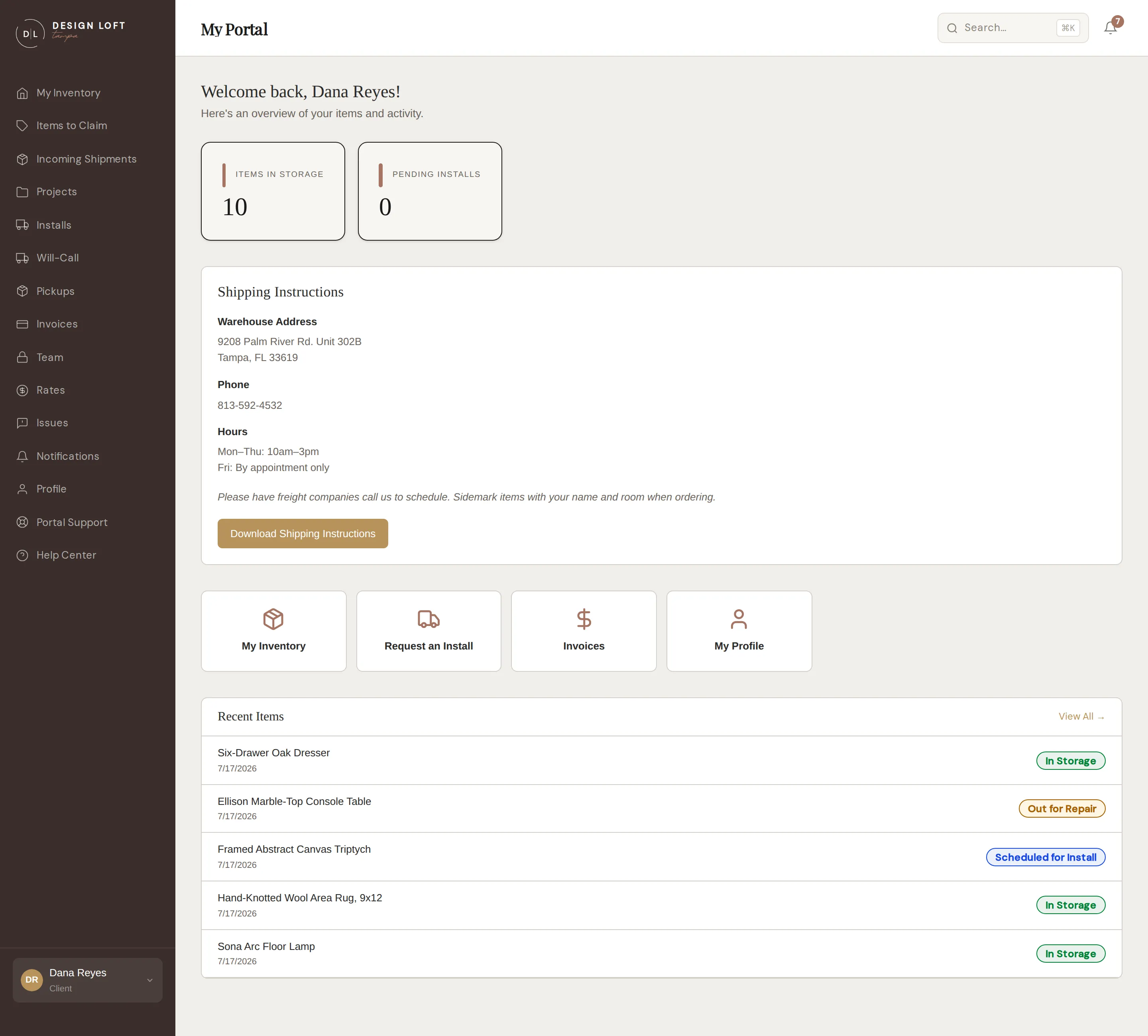
Section titled “The dashboard”Signing in lands you on My Portal, your dashboard:
- Items in Storage and Pending Installs counters up top. Items in Storage is what we are physically holding for you right now, so pieces already installed or collected by your crew are not counted in it - see Pieces that have left our care.
- Shipping Instructions for sending items to the warehouse, with a download button you can forward to vendors.
- Quick links to your inventory, install requests, and profile. Account managers also get an Invoices link here; other logins do not, because billing is for managers - see Who sees what below.
- Recent Items showing the latest arrivals still with us.
- If any item has an open damage case, an alert banner appears here so nothing slips by.
Finding anything fast
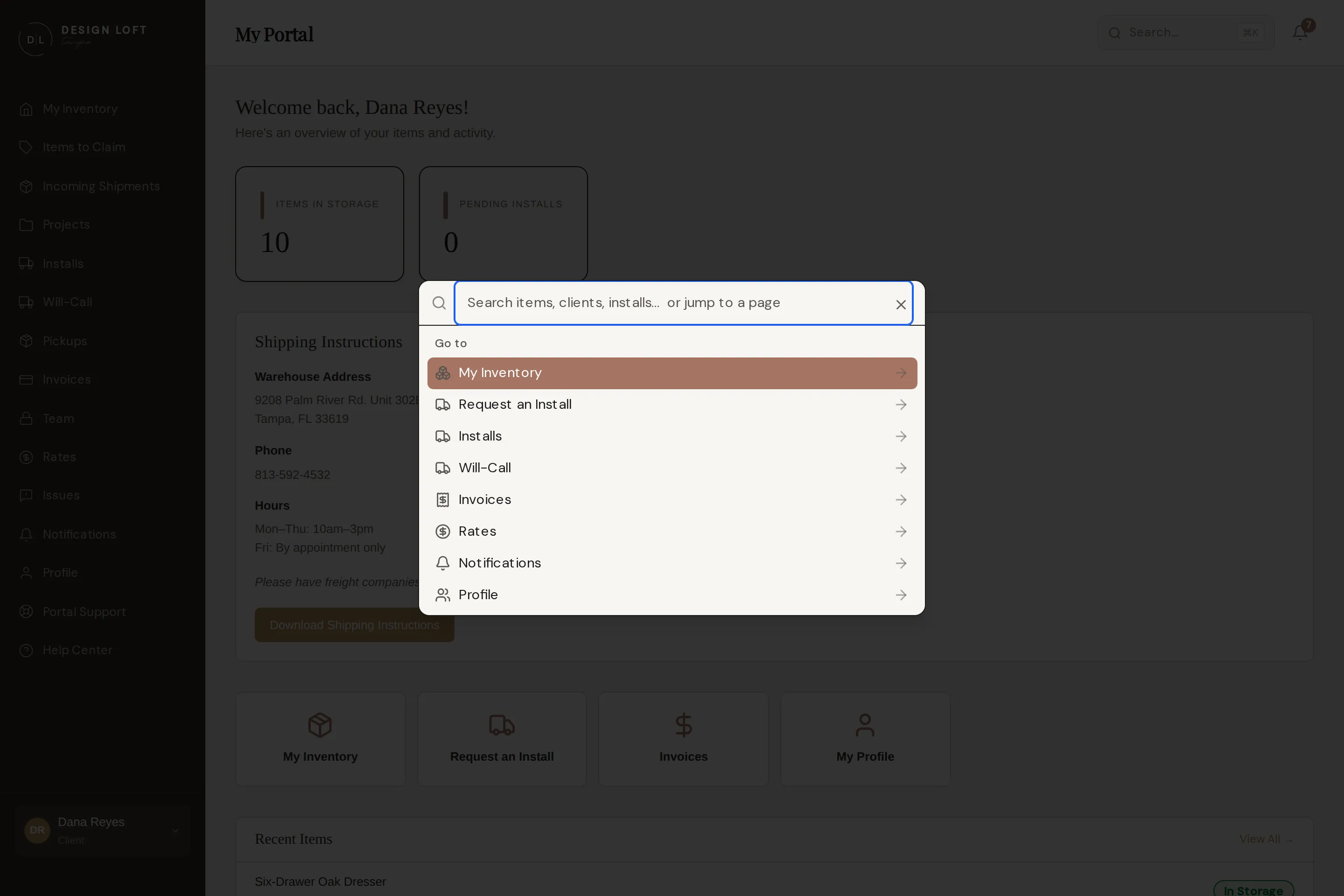
Section titled “Finding anything fast”Press ⌘K (or CtrlK on Windows) anywhere in the portal, or click the search box at the top of the page, and start typing - the portal takes you straight to the item or page you are after. Search reaches everything, including pieces that have already gone out to a project or left with your crew, so it is the quickest way to answer “what happened to that console table”.
Who sees what
Section titled “Who sees what”Each person on your team gets their own login. There are two portal roles:
| Ability | User | Manager |
|---|---|---|
| Inventory, installs, will-call, pickups, incoming shipments, issues, notifications, profile | Yes | Yes |
| Rates (the price list) | Yes | Yes |
| Invoices and payment methods | No | Yes |
| Invite and manage team members | No | Yes |
See Team management for details.