

Signing in
The portal does not use passwords for clients. You sign in with your email address, then confirm it is you with either a magic link or a passkey.
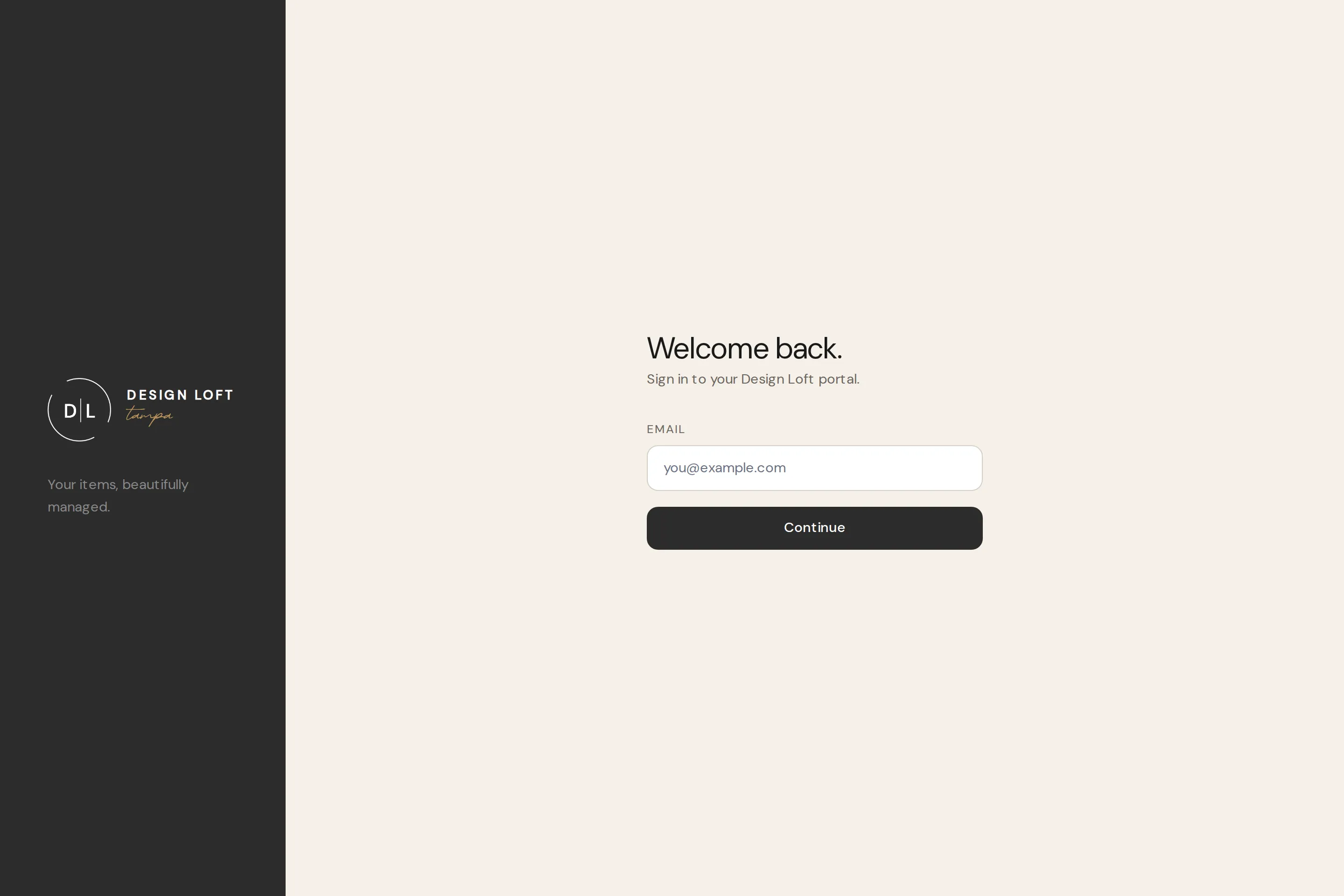
Sign in with an email link
Section titled “Sign in with an email link”- Go to designlofttampa.com and click Log In in the menu at the top of the page - or go straight to designlofttampa.com/login.
- Enter your work email address and select Continue.
- Check your inbox for a message from Design Loft Tampa and click the sign-in link.
- You land on your portal dashboard, signed in.
The link is good for 15 minutes and signs you in once. Clicking it more than once is fine: some mail apps open a link in their own little browser before handing it to Safari or Chrome, and a back tap or a double tap does the same thing. When that happens the portal sees that you are already signed in and takes you to your dashboard instead of asking you to start over.
If the 15 minutes have run out, start again from the login page - a fresh link takes seconds.
Sign in with a passkey
Section titled “Sign in with a passkey”If you have added a passkey to your account, the login page offers it automatically after you enter your email: confirm with Face ID, Touch ID, Windows Hello, or your security key and you are in - no email round-trip.
Passkeys are the fastest way into the portal on a device you use every day. Set one up in your profile; see Passkeys.
Staying signed in
Section titled “Staying signed in”Once you are in, you stay signed in on that device for 30 days, whether you check the portal daily or leave it alone for a few weeks. Using it keeps the clock topped up. Signing out from the user menu (bottom of the sidebar) ends the session immediately.
While you are signed in, the Log In link on our public site is replaced by My Dashboard, which takes you straight back to the portal.
The buttons in our notification emails (“View Invoice”, “View Inventory”, “View & Reply” and so on) work the same way: on a device where you are still signed in, they open that exact page in the portal without stopping to ask who you are.
Trouble signing in?
Section titled “Trouble signing in?”- No email arrived. Check spam, and confirm you entered the address your account was created with. The email comes from our notifications sender.
- Link says it is expired. It has been more than 15 minutes since you asked for it. Request a new one from the login page.
- A button in a notification email dropped you at the login page. Your 30 days were up, or you had signed out. Sign in as usual, then click the button in the email again and it will take you where it was pointing.
- You changed email addresses. Contact us (or ask your account manager) so we can update your login email.
- Account suspended message. Contact our team - see Contact and support.