

Pickups - we collect for you
Not everything arrives by freight. A showroom is holding pieces for you, a client’s garage is full of things that need to go into storage, a job site has furniture that has to come back. Ask us and we will send a truck for it. That is a pickup: we collect the items where they are and bring them to the warehouse, where they are received like any other shipment.
This is the opposite of a will-call, where your crew collects items from us. Pickups and Will-Call are two separate pages in your sidebar, and they point in opposite directions: Pickups brings things in, Will-Call sends things out.
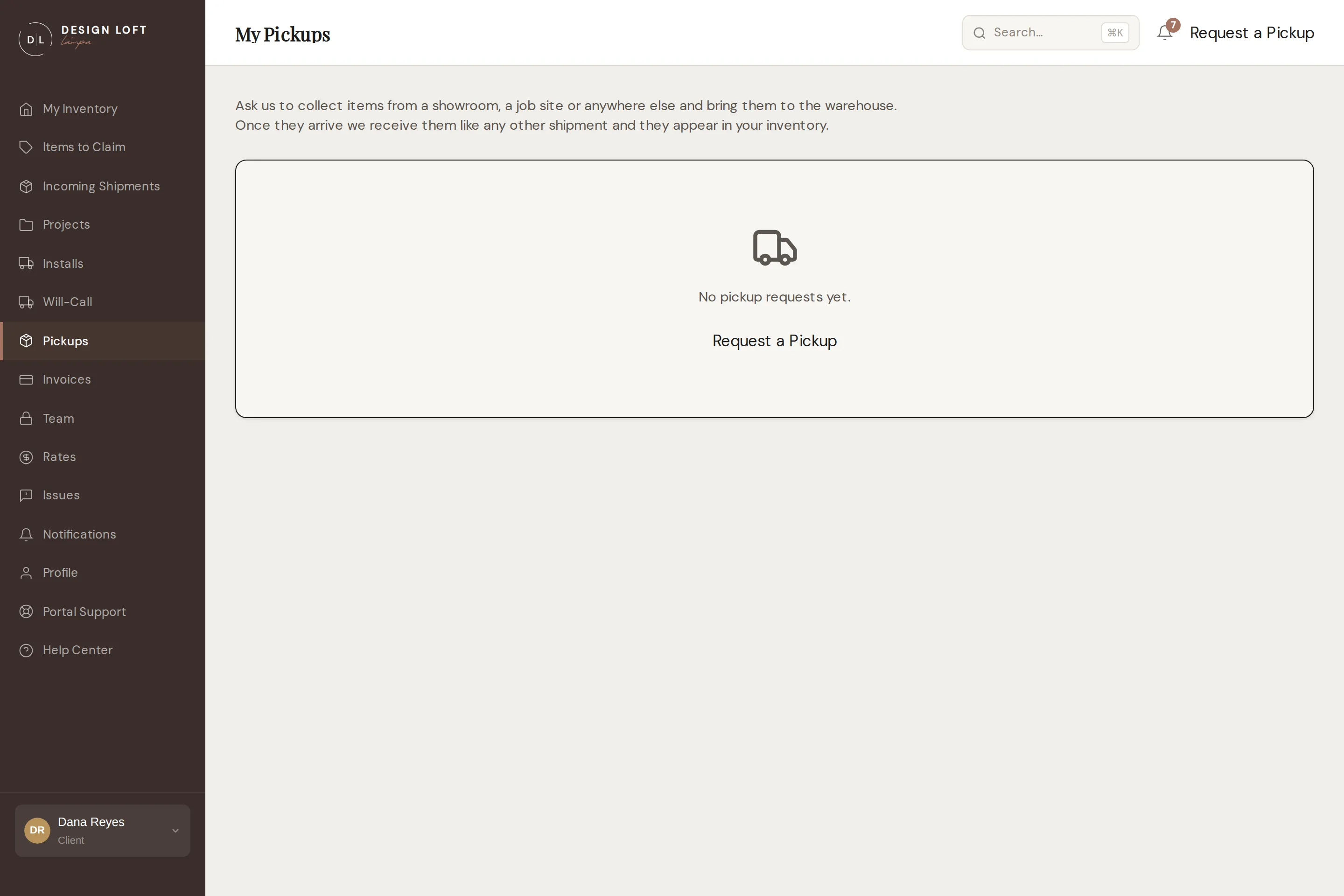
Requesting a pickup
Section titled “Requesting a pickup”- Open Pickups in the sidebar, then Request a Pickup.
- Fill in the three short sections below.
- Click Send Request.
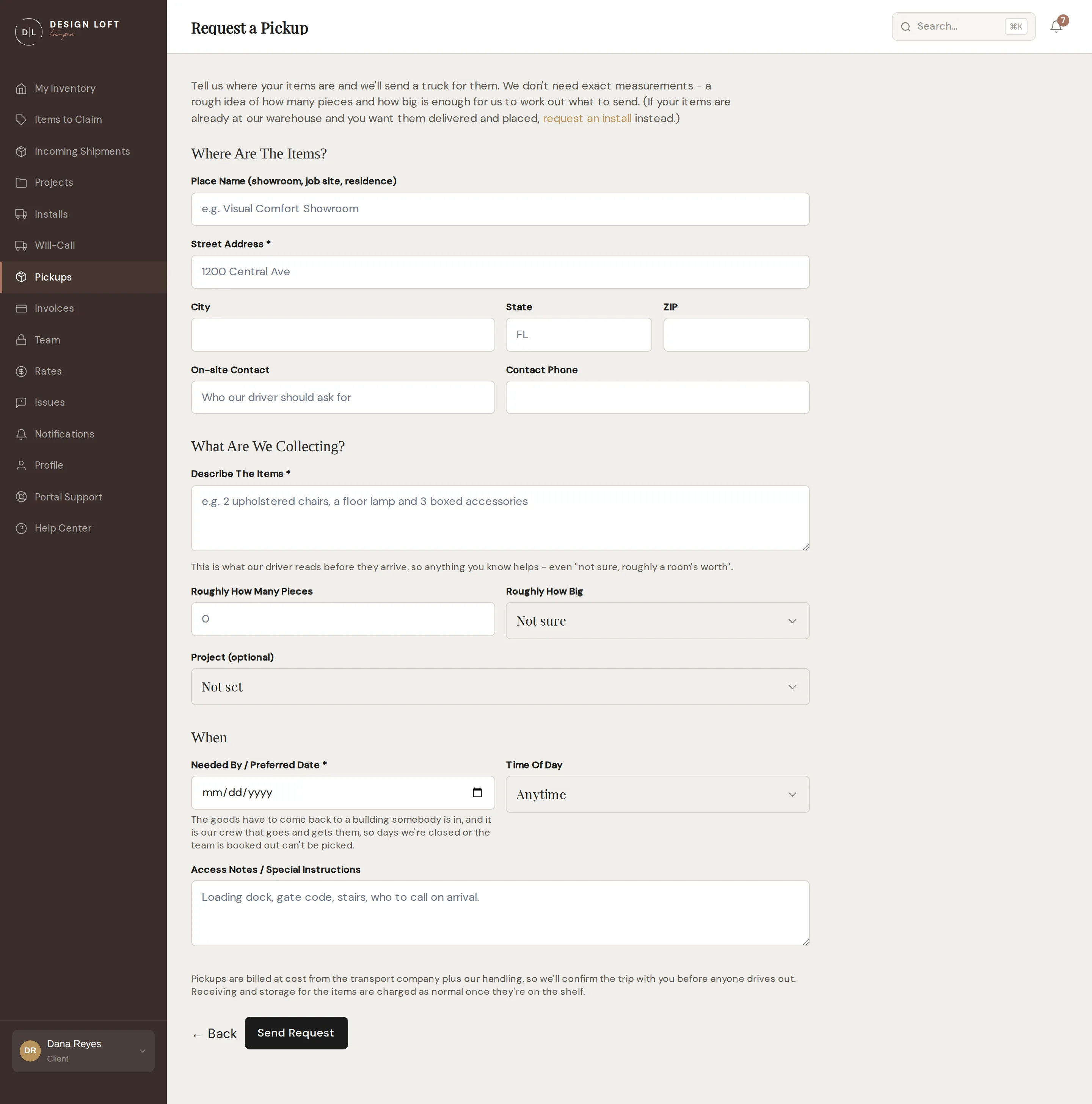
Where are the items?
Section titled “Where are the items?”- Place name - the showroom, warehouse or residence, if it has a name our driver should ask for at the door.
- Street address, city, state and ZIP. The street address is required - it is the one thing a driver cannot do without.
- On-site contact and contact phone - who our driver should ask for, and how to reach them if nobody answers the door.
What are we collecting?
Section titled “What are we collecting?”- Describe the items (required). This is what the driver reads before they set off, so anything you know helps. “Not sure, roughly a room’s worth” is a genuinely useful answer.
- Roughly how many pieces - your best guess.
- Roughly how big - a size band: fits in a car, a van load, needs a truck, or mixed sizes. Not sure is on the list on purpose. Nobody has measured these pieces, and we would rather send someone to look than have you guess a number we then plan a vehicle around.
- Project - if you already know which job the items belong to. You can leave it unset; we can put them on a project when they are received.
- Needed by / preferred date (required). Two kinds of day cannot be asked for, and the form says so under the date box before you get to them. Days the warehouse is closed, because the items have to come back to a building somebody is in. And days our crew is already committed elsewhere, because the team that works installs is the same team that comes and gets your pieces. Choose one of those days and the date box turns red with a line under it telling you to pick another, and the request will not send until you do - see Dates and closures, which works the same way for an install. In the rare case a day is taken while you are still filling the form in, the page comes back with a message asking for another date.
- Time of day - morning, afternoon, or anytime.
- Access notes - loading dock, gate code, stairs, who to call on arrival. Anything that would otherwise be discovered by a driver standing on the pavement.
Send the request and it appears in your Pickups list. You get a Pickup Request Received confirmation, and the request sits at Pending while we price the trip and arrange a date with you.
Following a pickup
Section titled “Following a pickup”Open Pickups in the sidebar any time to see every one you have asked for. Each row shows the day you asked, the date you need it by, where we are collecting from, what you told us is there, and where things stand. Click Details on any row to open that pickup’s own page.
The page repeats everything you filled in - where we are collecting from, your on-site contact, the date and time of day, the project, your description of the items with your rough count and size band, and your access notes - and adds a line under the status telling you what is happening right now.
A pickup moves through four steps, and the word on the row is the word on the page:
- Pending - we have your request. We arrange a transport company and confirm a date with you.
- Confirmed - the date is set, and the page reads Scheduled for that date. You get a Your Pickup Is Scheduled email. Make sure the items are accessible and someone is on site to let the crew in.
- In Transit - the truck is out. The page reads Our driver is on the way.
- Completed - the items are at the warehouse, and the page reads Collected with the date. You get a Your Items Are At The Warehouse email.
A pickup you call off reads Cancelled and stops there.
Those two emails also land in your notifications feed, and reach you by text as well if that is how you have set your preferences. We do not message you while the truck is in transit, and calling a pickup off yourself does not send you one either - the page you cancelled it on says so instead.
The pieces we collect
Section titled “The pieces we collect”Your items do not exist in the portal when you file the request - nobody has seen them yet, so there is nothing to pick from a list. They are added afterwards, at our dock.
Once the truck is back, everything it brought is received exactly like a vendor shipment: unboxed, inspected, photographed, measured, labelled and put on the racks. As that finishes, each piece appears under Items Collected on the pickup’s page, and in your inventory alongside everything else we hold for you. Each name there is a link to the piece’s own page, with its photos and its history.
Until then the section says so plainly rather than showing an empty list. If the pickup is complete but the pieces are not listed yet, they are being received right now.
Calling off a pickup
Section titled “Calling off a pickup”Plans move. Open Pickups, click Details on the pickup, and use Cancel Pickup at the top of the page. There is room to tell us why, which is optional and helps us plan the day, and Keep the pickup backs out of the dialog without doing anything.
- Before we have scheduled it, the pickup is called off straight away.
- Once it is scheduled, we have booked a transport company for the trip, so tell us as early as you can. Nothing has been collected yet, so nothing will be billed either way.
The page then shows a note confirming it: nothing was collected, and nothing will be billed.
Once the truck is out, the button is gone. The trip has happened by then, so call us rather than looking for a button - we will sort out what to do with you.
Anything else you want to change on a pickup - a different address, a different date, more pieces than you first described - is a quick phone call as well. Pickups are arranged with a transport company rather than from a form, so it is faster to tell us than to refile.
What a pickup costs
Section titled “What a pickup costs”A pickup is billed like an install: a transport company does the driving and invoices us for the trip, and you pay that bill plus our handling. Because of that:
- There is no estimate. We have not seen the pieces, and neither has the transport company - anything we quoted before the trip would be a guess dressed up as a number. We confirm the arrangement with you before anyone drives out.
- The invoice follows the trip, not the request. It arrives once the transport company sends us their bill, which is usually a few days after your items are already on the shelf. Until then the pickup’s page says as much, so a completed pickup with no invoice on it yet is waiting on that bill rather than on you. Once we issue it, an Invoice section appears at the bottom of the pickup’s page with the total and View invoice beside it, and the same invoice is in your Invoices list. The line on it reads Item pickup. Opening invoices, here as everywhere, is for account managers.
- A pickup that never happened is never billed. Cancel it and there is nothing to pay.
- Receiving and storage are separate and normal. The pieces we bring in are received and stored exactly like freight that arrives by carrier, and those fees appear on your monthly statement in the usual way - see what is on an invoice. The pickup invoice covers the trip and nothing else.
Pickup or will-call?
Section titled “Pickup or will-call?”| Pickup | Will-call | |
|---|---|---|
| Which way | Items come in to the warehouse | Items go out to you |
| Who drives | Design Loft Tampa arranges the truck | Your crew or your mover |
| Where items end up | On our racks, in your inventory | With you, off our racks |
| What you pick | Nothing - you describe what is there | The exact pieces, from a photo grid |
| What it costs | The trip, billed after the transport bill | A pull charge per piece |
If the items are already at our warehouse and you want them delivered and placed at the site, that is an install instead.