

Will-call pickups
Sometimes you do not need our truck - your crew, a mover you hired, or the client themselves will collect the items. That is a will-call: we pull and stage the items, and your people pick them up at the warehouse.
Wanting it the other way round - pieces sitting at a showroom or a job site that need bringing to us - is a pickup, which has its own page in your sidebar. Everything below is about items leaving our building.
Requesting a will-call
Section titled “Requesting a will-call”Open Will-Call → New Request.
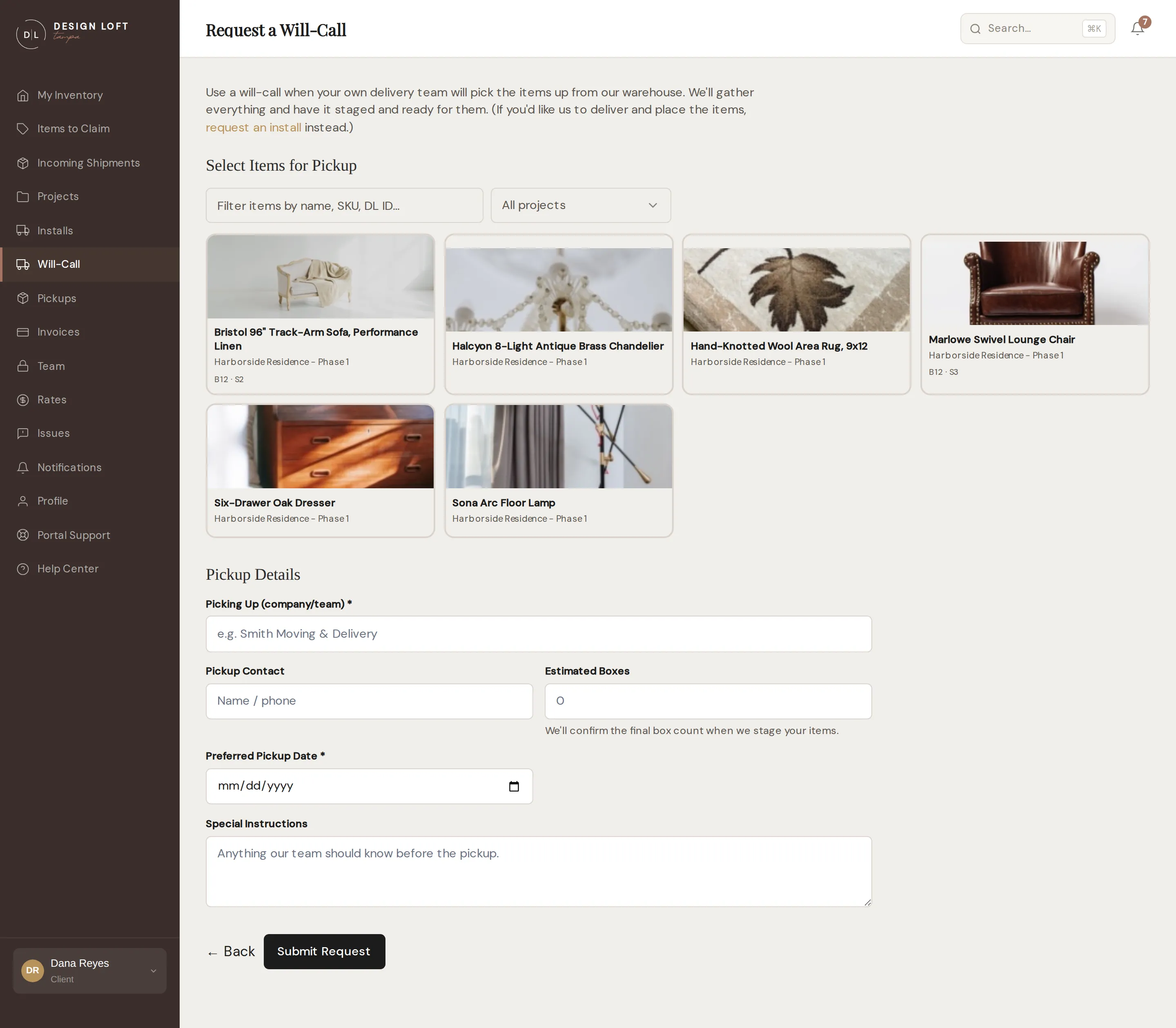
Select the items to stage, from a photo grid of everything you have in storage, grouped by project. Three tools above the grid help you find things quickly:
- Search by an item’s name, its SKU, or the ID printed on its label.
- The project dropdown shows one project’s items at a time.
- Selected appears once you have picked something. Select it to see only the items you have chosen so far; select it again to go back to the full grid.
Each tile shows the item’s best photo, and resting your pointer on a tile flips through all of its photos - handy when the first shot is the box it arrived in. A small counter on the tile shows how many photos there are. If you store a lot with us, the grid is split into pages you move through with Previous and Next; your picks are kept as you search, filter, and change pages, so you can select freely across all of them.
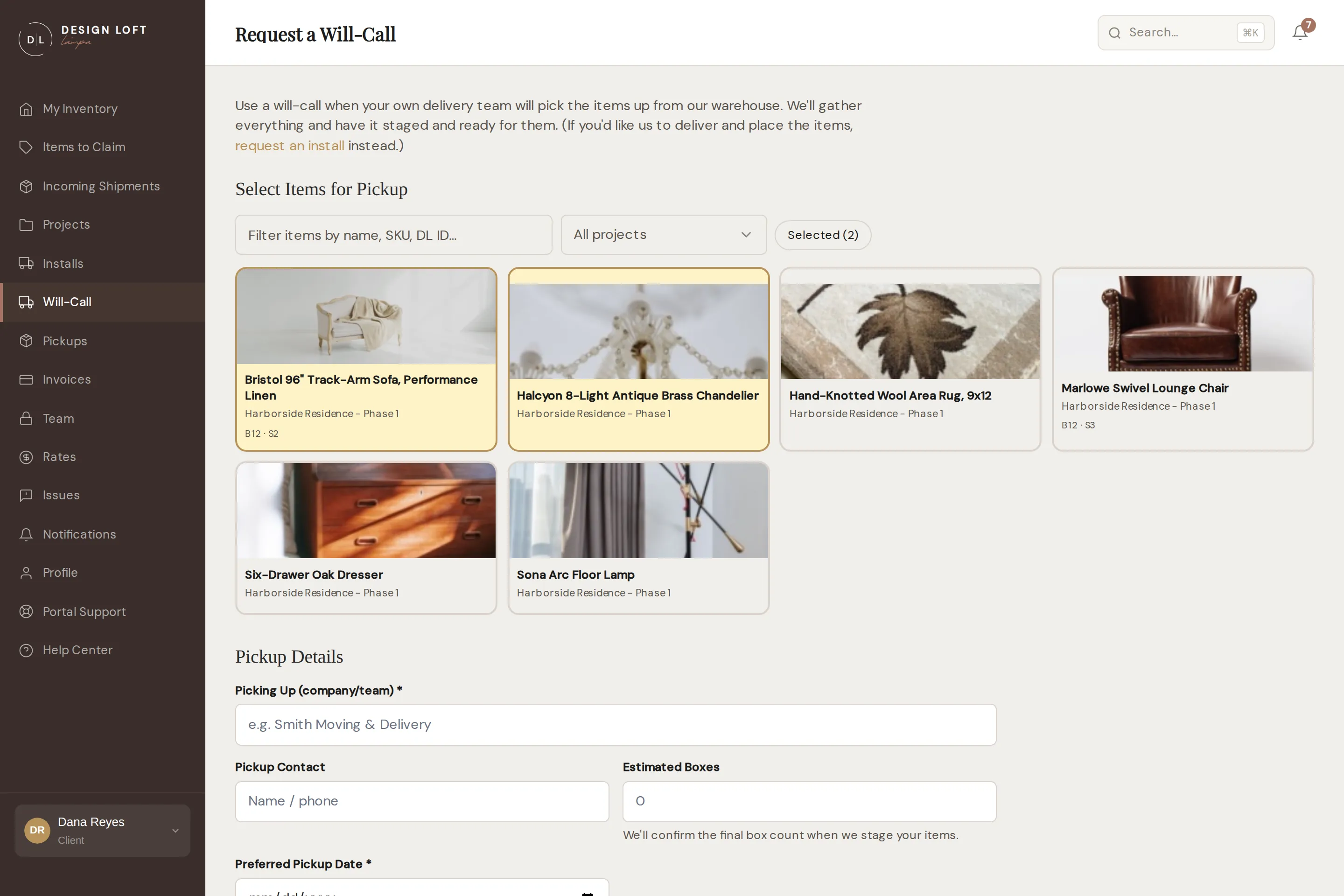
Then fill in the pickup details:
- Picking Up - the company or person collecting (required, and they should be able to show it at the door). Whoever turns up signs for the load before it leaves the dock - see Pickup day: your crew signs for the load.
- Pickup Contact - who to coordinate with day-of.
- Estimated Boxes - your best guess helps us stage efficiently.
- Preferred Pickup Date - a day the warehouse is closed cannot be used. Choose one and the date box turns red with Warehouse closed - pick another day under it, and the request will not send until you pick another. A Saturday or Sunday you can still ask for, but it carries a callout fee - see Weekend and after-hours pickups.
- Special Instructions - anything else we should know.
Submit the request and it appears in your Will-Call list while we confirm. You get a Will-Call Request Received confirmation, and the pickup sits at Pending until we lock the date in.
Filing it takes a few seconds. Once you select Submit Request the button reads Submitting… and a line appears under the form asking you to stay put: we are saving the pickup and sending the confirmations before the page moves on. Leave it to finish rather than clicking again or closing the tab. If you do click twice, only one pickup is filed - a repeat of the same request within a couple of minutes is treated as the same submission, not a second one. The same applies to every form in the portal.
If we cannot accept the request, the page comes back with a message at the top saying why: a date we cannot work, a piece that has left storage since you opened the form, or a detail we still need. Fill it in again with that one thing changed and it goes through. Nothing was filed in the meantime, so there is no half-made pickup to tidy up.
Weekend and after-hours pickups
Section titled “Weekend and after-hours pickups”Our warehouse runs Monday to Friday, so a Saturday or Sunday pickup means one of our people comes in and opens the building just for your crew. We are happy to do it, and it carries a flat after-hours callout fee.
Choose a weekend date on the form and a note appears under the date field right away, so the fee is never something you first learn about on an invoice.
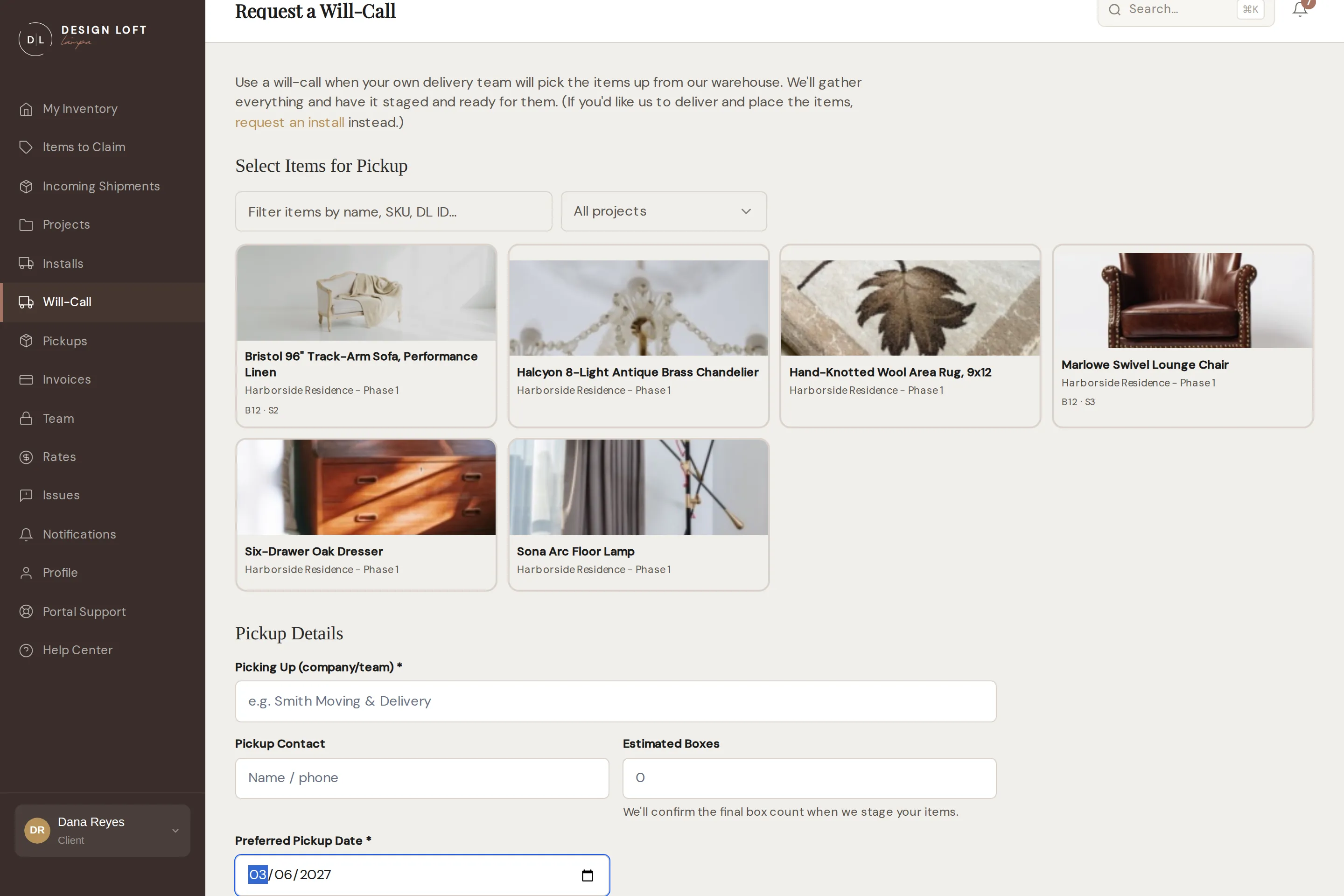
What to know about it:
- It is charged once for the whole pickup, never per item or per box - one piece or twenty, opening the door costs the same.
- It follows the day the pickup actually happens. If we confirm a weekday with you instead, it drops off; if a pickup moves onto a weekend, it applies.
- It is added when the pickup is completed and appears on that pickup’s invoice as After-hours / weekend pickup fee - see what is on an invoice.
- Choosing a weekday avoids it entirely, which is what the note on the form suggests before you submit.
- Days we are fully closed, such as holidays, are refused outright - those are not on offer as a callout, so choosing one turns the date box red and the form will not send until you pick another day.
If we agreed ahead of time to open up for you without the callout fee, tell our team and we will take it off the pickup.
An install on a closed day works the same way - see Dates and closures.
Will-calls are only ever blocked by a closed day. Your own crew is doing the collecting, so a day when our install team is out - which does block an install or a pickup - makes no difference to a will-call: we are open, your items are staged, and your driver can come for them.
Following a pickup in your Will-Call list
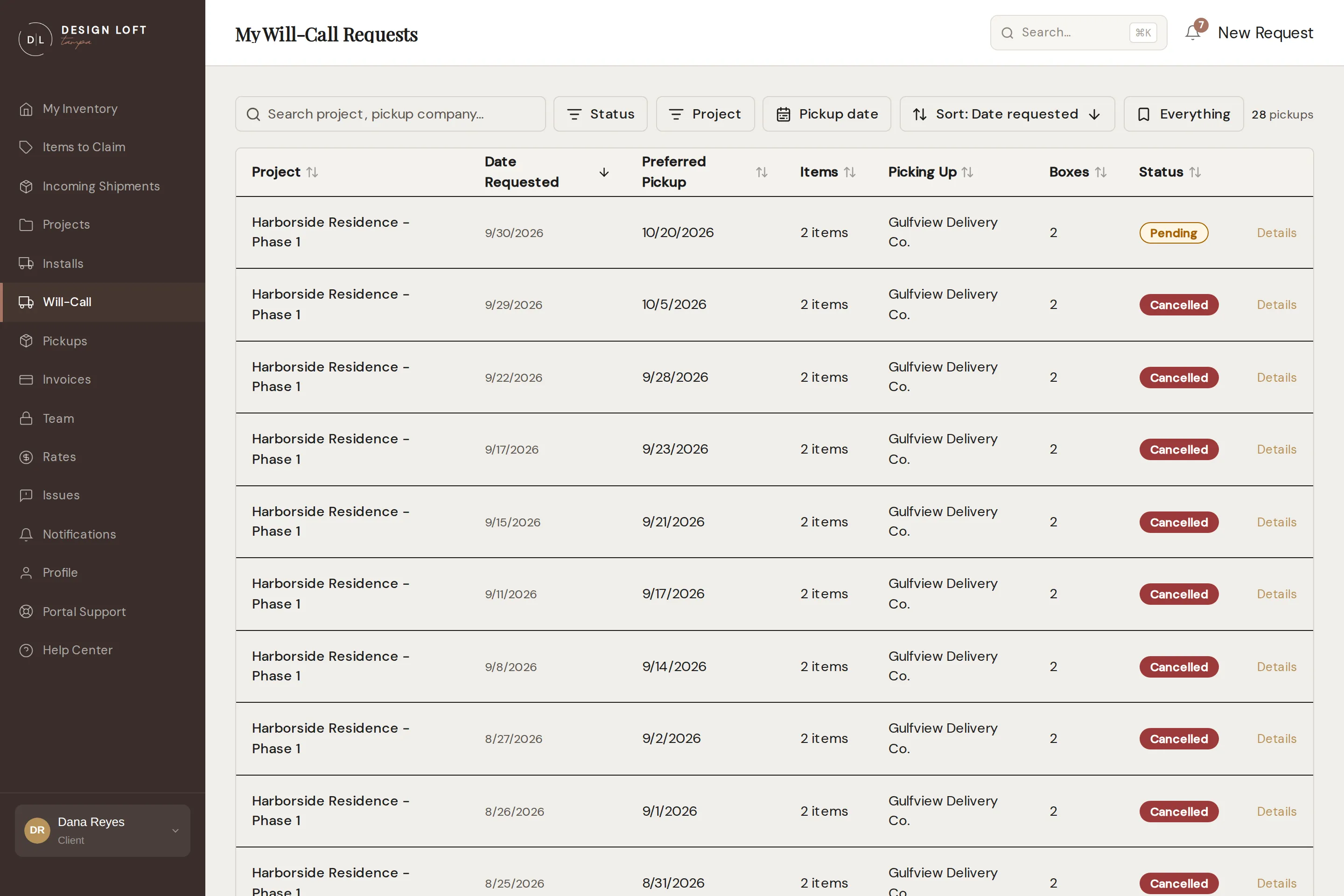
Section titled “Following a pickup in your Will-Call list”Open Will-Call in the sidebar any time to see every pickup you have filed. Each row shows the job the pieces are for, the date you asked, your preferred pickup date, how many pieces are on the pickup, who is collecting, your box estimate, and where things stand. Click Details on any row to open that pickup’s own page, where you can see the full list and change anything on it - see Changing a pickup you already filed. Once you have a few seasons of pickups behind you, the bar above the list is the fastest way to the one you want - see Finding one pickup in a long list.
Project is the first column, so you can tell the Harborside pickup from the Sunset Loft one at a glance. There is nothing to pick on the form for it: a pickup is whatever its pull list is for, so we take the job from the pieces you selected, and it keeps up if you add pieces or take them off later. Two things it can read instead of a job name:
- Multiple projects - the pieces on that pickup come from more than one job. That is perfectly fine to do; the column is telling you the load is mixed so you can split it if you would rather re-bill each job separately.
- - - none of the pieces on it are filed under a job yet. Put them on their projects and the pickup names the job by itself - see When items arrive without a project.
The Items count is the full list you selected, so it is also the list our crew pulls from. If it does not match what you expect, open the pickup and fix it before pickup day.
A pickup moves through four steps:
- Pending - we have your request and are confirming the date.
- Confirmed - the date is set and your pieces are set aside for it.
- Ready for Pickup - everything is pulled, wrapped, and waiting at the dock.
- Completed - your team signed for the load and took it.
Your inventory follows along without you having to call us: the pieces show as Will Call once we confirm the pickup, Ready for Pickup while our crew stages them, and Picked Up the moment your team signs for them at the dock. They stay in My Inventory right up to that signature, so you can see at a glance what is staged and what is still to go.
Once a piece reads Picked Up it is no longer ours to hold, so it leaves the everyday inventory list along with everything else that has gone out - see Pieces that have left our care. It is not gone: search for it by name and its page opens as usual, and the pull list on this pickup still names every piece your crew took. And it is not one-way either: a piece that turns out to be defective can come back to us and rejoin your inventory - see If a piece has to come back.
Once your team has signed for the load, the pickup is invoiced on its own rather than waiting for your next monthly statement - see The invoice for your pickup.
Finding one pickup in a long list
Section titled “Finding one pickup in a long list”The bar above the Will-Call list narrows it down to the pickup you are after. It only changes what is on your screen - nothing about the pickups themselves moves, and there is nothing to save or undo.
- Search matches the job name, the company collecting, your pickup contact, the status, and anything you wrote in the special instructions.
- Status keeps only the pickups sitting where you choose - Pending, Confirmed, Ready for Pickup, Completed, Cancelled. The menu offers only the statuses your own pickups are actually in, so nothing in it comes up empty. If they are all at the same status, the menu does not appear at all.
- Project keeps just the job you pick, or several jobs together if you pick more than one. A load made up of pieces from more than one job is filed under Multiple projects, which is its own choice in the menu.
- Pickup date narrows to a window of dates: Today, the Next 7 days, the Next 30 days, or a from and to you set yourself.
- The view button - it reads Everything until you change it - holds three ready-made views: Everything, Upcoming for the pickups still to happen, and Completed for the loads your crew has already taken. A cancelled pickup is in neither of the last two, so reach it from Everything or the Status menu.
- Sort reorders the list, and so does clicking a column heading: Project, Preferred Pickup, Items, Picking Up, Boxes, any of them. Click the same heading again to reverse it. Preferred Pickup starts soonest first, so the top of the list is the next crew arriving.
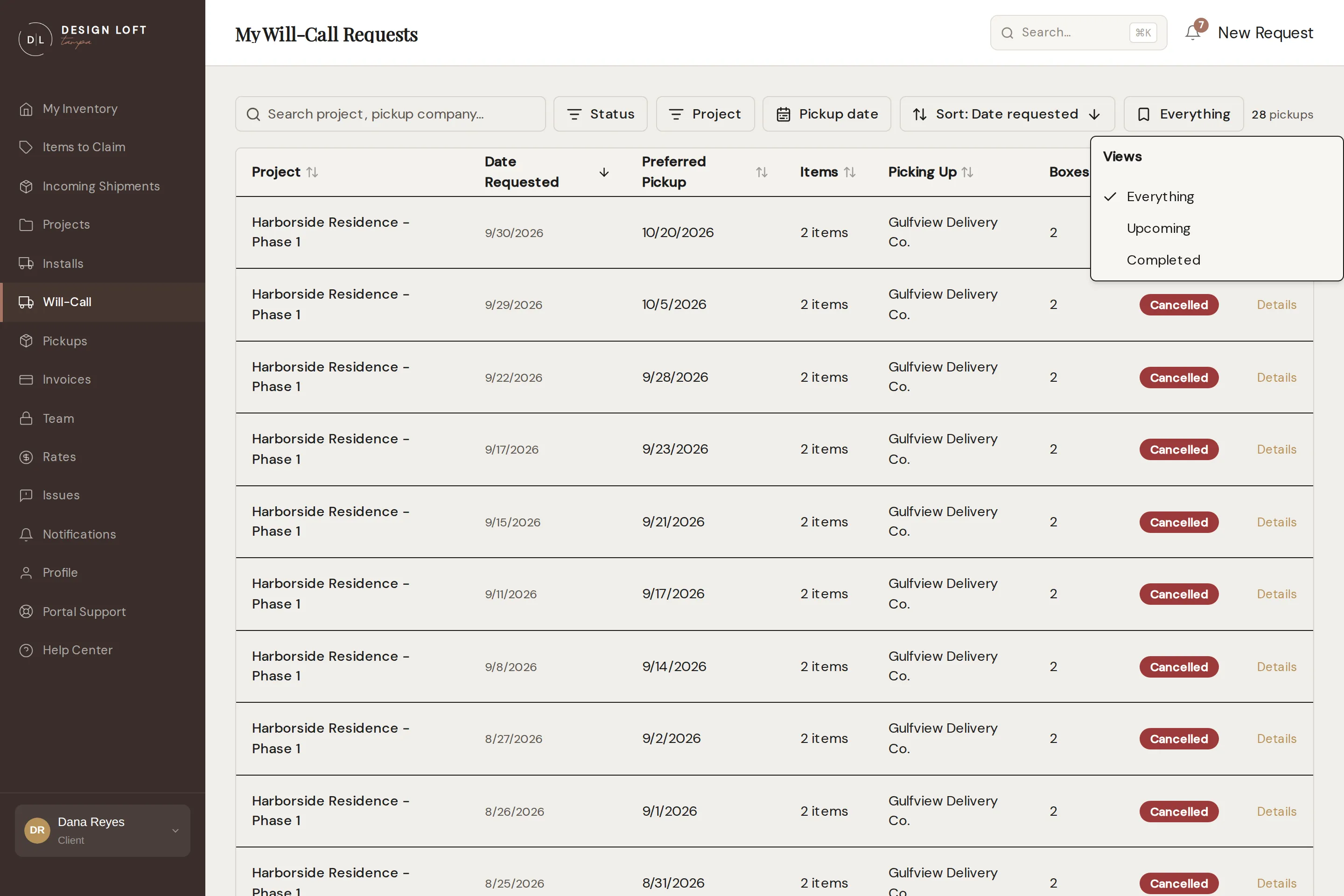
What you have typed, the dates you set, and the menu choices you make yourself all show as small tags under the bar - a ready-made view names itself on its own button instead. Select the × on a tag to drop just that one, or Clear all to go back to the full list. The count on the right says what you are looking at out of what you have, like 2 of 9 pickups.
The list opens the way you left it on the computer you are using, and the address bar keeps up with it, so copying the address gives a colleague on your account the same view. Left alone, it opens the way it always has: every pickup you have filed, newest first.
Changing a pickup you already filed
Section titled “Changing a pickup you already filed”Plans move. Open Will-Call, click Details on the pickup, and everything about it is yours to change: the pieces on it, who is collecting, the day-of contact, the box estimate, the date, and the instructions. You can also call the whole thing off.
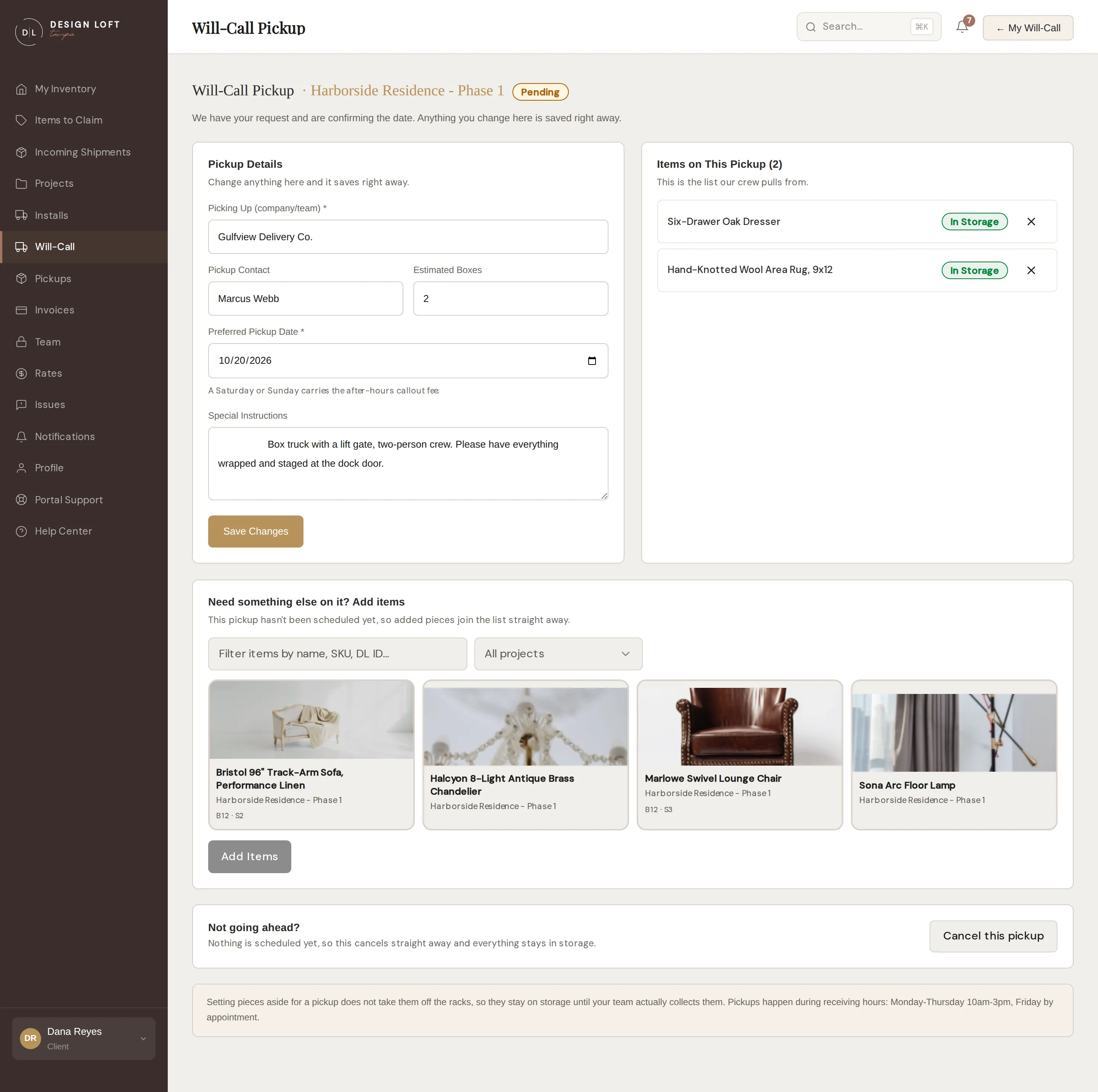
The job the pieces are for is named beside the Will-Call Pickup heading at the top, and again as Project in the pickup details underneath, so the page says which one you have open before you change anything on it.
When the pickup is still Pending, your changes save straight away. Nothing is scheduled yet, so there is nothing to work around - we look at the whole request when we confirm the date.
Once the pickup is Confirmed or Ready for Pickup, your changes come to us first. By then the date is a slot on our calendar and your pieces are set aside for it, so a change is a quick confirmation rather than an instant edit. You send it, the page shows it under Waiting on our review, and we let you know as soon as it is confirmed. Nothing on the pickup moves until then, so what you see is always what the crew is actually pulling.
The page tells you which of the two you are in before you touch anything, and the buttons change with it: Save Changes on a pending pickup, Request These Changes on a confirmed one.
Items on This Pickup is the pull list itself, exactly as our crew works from it. Each row shows the piece, which box it is in, and where it stands right now, and the name is a link to the item’s own page if you want the photos and the history.
What you can change
Section titled “What you can change”- Add pieces. Under Need something else on it? Add items you get the same photo grid as the request form, showing everything you have in storage that is not already on this pickup. Realized your crew may as well take the two lounge chairs while they are here? This is where. On a confirmed pickup the pieces you send sit under Awaiting our review on the pull list until we answer. Changed your mind about one of those while it is still waiting? That is the one thing you cannot undo yourself - tell us and we will drop it. Adding pieces from a second job is fine; the pickup then reads Multiple projects in your Will-Call list.
- Take pieces off. Each row on the pull list has an × next to it. On a pending pickup the piece comes off the moment you say yes; on a confirmed one the row reads Removal requested until we answer. Either way the piece ends up back at In Storage, free for another pickup or an install. The last piece on the list has no × - a pickup with nothing on it is a cancellation, so cancel it instead.
- Change the details. Who is collecting, the pickup contact, your box estimate, the date, and anything the crew should know. We need a name for who is collecting and a date that has not already gone by; the rest you can leave blank. Moving the pickup onto a day the warehouse is closed is refused the same way it is on the request form: the page comes back with a message naming the date and asking for another one, and nothing on the pickup changes until you pick a day we are open. Moving onto a Saturday or Sunday is fine and picks up the callout fee, the same way choosing one on the original form does.
- Cancel it. If your crew is not coming, say so and everything still in the warehouse goes straight back to In Storage - nothing stays stuck in a pickup that is not happening. There is room to tell us why, which is optional and helps us plan the day. Asked us to cancel and then changed your mind? Never mind, keep this pickup withdraws it, as long as we have not acted on it yet.
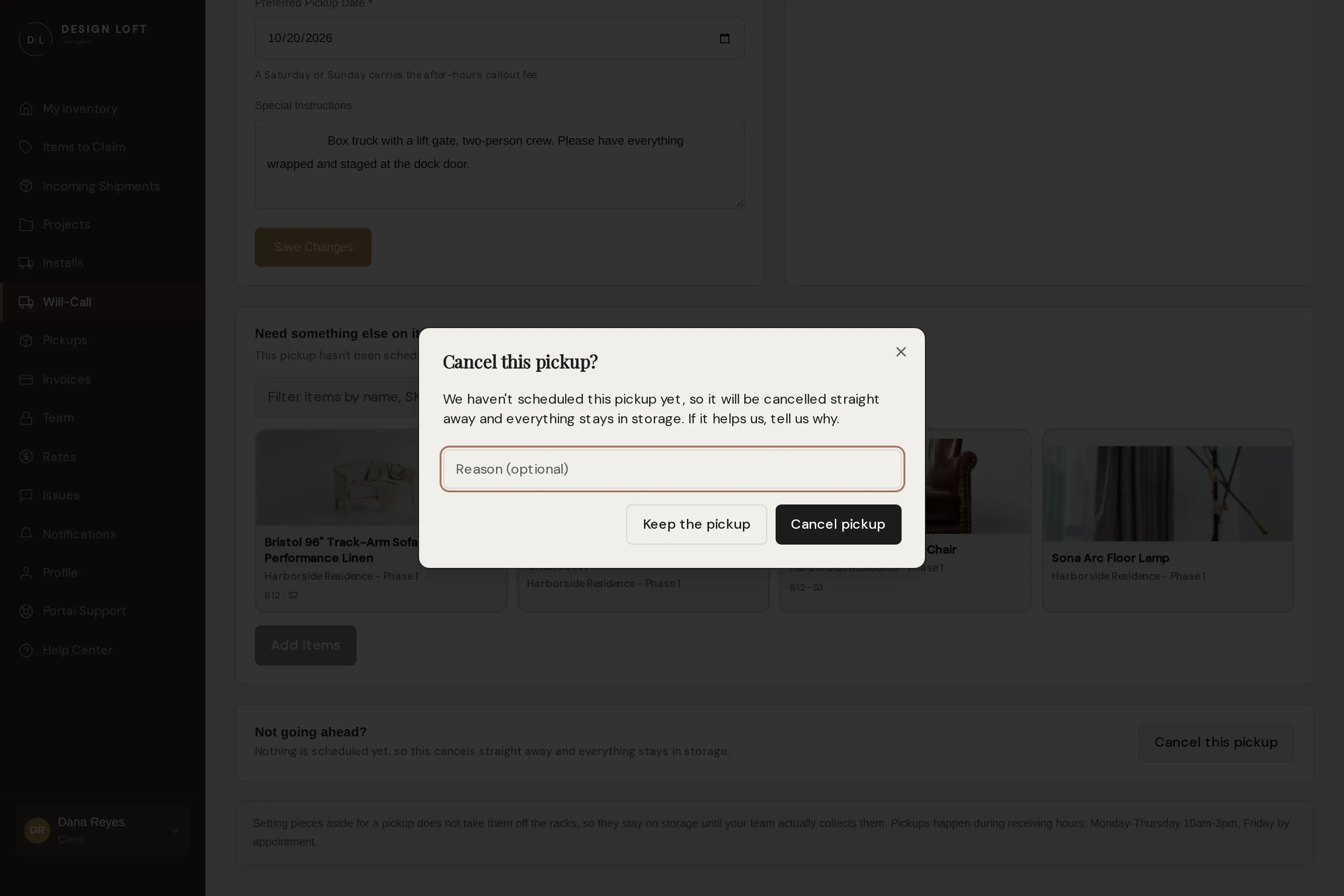
Once a pickup is Completed or Cancelled it is history, so the page shows it read-only.
How you hear back
Section titled “How you hear back”Every answer reaches you the way the rest of your notifications do - in the portal, and by email or text depending on your preferences. Each one opens the pickup it is about, so you are never left guessing which one moved:
- Items added to your pickup - the pieces are on the list, the Items count goes up, and they move to Will Call in your inventory alongside the rest.
- We could not add everything to your pickup - the pieces it names stay in storage. Give us a call and we will find another way to get them to you.
- Items taken off your pickup - they are back at In Storage, free for another pickup or an install.
- Some pieces are staying on your pickup - we could not take those off in time, so your crew will still see them at the dock.
- Your pickup was updated - the details you asked us to change are now on the pickup.
- We could not make that change to your pickup - the pickup is exactly as it was. A quick call sorts out what does fit.
- Your pickup is cancelled - everything on it is back in storage and free for another pickup or an install.
- Your pickup is going ahead - there is no cancellation outstanding on it, either because you withdrew yours or because the day was too close for us to release it.
Pickup day: your crew signs for the load
Section titled “Pickup day: your crew signs for the load”When your people arrive, we bring the staged pieces to the dock and hand whoever is driving away with them a tablet with the Will-Call Pick-up Release on it. It takes under a minute to fill in:
- Picking-Up Company - already filled in with the name you gave us on the request, and correctable at the dock if a different mover turned up.
- Person Collecting - the first and last name of the person actually taking the pieces.
- Condition at Pickup - either Received in good condition, or Exceptions to note with a line about what they found, such as a crushed box corner or a scuffed chair leg.
- Signature - drawn with a finger on the screen, or typed as a full name.
- Complete Pickup Release finishes it.
Signing is what ends the pickup. Every piece on the list moves to Picked Up, storage on those pieces stops that day, and the pickup itself goes to Completed.
Worth telling your crew or your mover before they set off:
- They sign in their own name, for the company collecting. It is a record of who physically took the furniture.
- They should look the pieces over before signing. Anything they do not write down under exceptions counts as accepted in the condition it was released in.
- The release says that once the goods are loaded, the care and the risk of them are with the party collecting rather than with us. If you hired a mover, that is the moment responsibility passes to them.
Your copy of the release
Section titled “Your copy of the release”The signed release is filed on the pickup, and it is yours to keep. Open Will-Call, click Details on the completed pickup, and the Pick-up Release card tells you who signed, the company they were collecting for, how many boxes went with them, the date, and the condition they reported. Download the signed release (PDF) gives you the document itself, which lists every piece released.
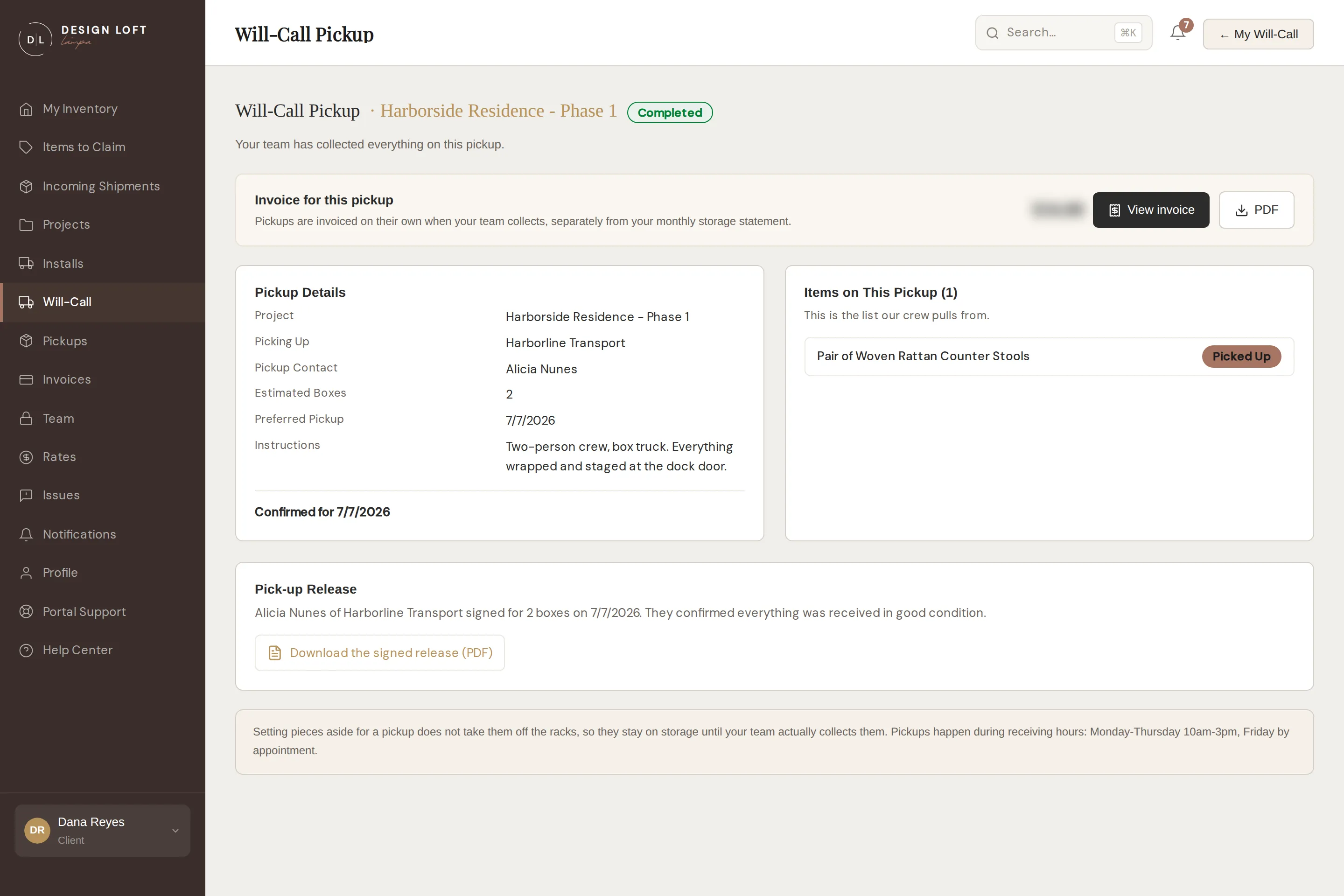
Keep it with the project’s paperwork. If a piece turns up damaged at the site later, that document is the record of what left our building, in what condition, and in whose hands.
If nobody was able to sign - the driver was gone before anyone could ask, say - the card says so plainly and there is no PDF to download. Give us a call if you need something in writing for that pickup.
If a piece has to come back
Section titled “If a piece has to come back”Now and then a piece your crew collected turns out to be wrong: it is defective, it does not work, the finish is not what was ordered, or the vendor shipped the wrong thing entirely. You can bring it back to us, even though the pickup is finished and paid, and we will get it back to its vendor from here.
- Tell us it is coming. Call us, or open an issue on the piece so the photos and the story stay attached to it. Either way we know what to expect at the door and can start the vendor’s return authorization.
- Bring it to the dock during receiving hours - Monday-Thursday 10am-3pm, Friday by appointment - at the same door your crew collected it from. See Shipping to the warehouse for the address and door details.
- We take it back in. Our team records the piece, why it came back, and the condition it arrived in, and photographs it if it came back damaged.
- Tell us where it goes next. Either straight back to its vendor, which puts it in the queue for the freight company to collect, or back on the racks if you would rather keep it.
What you will see in the portal afterwards:
- The piece is live again. It stops counting as gone: it reads Return to Vendor if it is headed back to the vendor, or In Storage, back in your everyday inventory list, if it is going on the racks - see Pieces that have left our care. Its page, its photos, its box, and every issue ever opened on it are exactly where they were.
- The pickup itself does not change. It stays Completed, the pull list still names every piece your crew took that day, and the signed release still records what left the building and in what condition. That is the point of the release, and a piece coming back later does not rewrite it.
- The invoice you have already paid stands. Nothing is re-billed and nothing is credited automatically. What the piece does from here bills the ordinary way - see A piece coming back does not undo an invoice. If you think the trip warrants a credit, talk to us and we will look at it with you. Anything we agree comes off your next invoice - see Credits and one-off charges.
A piece we installed at your site can come back the same way. There is no page for it, so tell us and we will arrange it.
The invoice for your pickup
Section titled “The invoice for your pickup”A pickup is billed on its own invoice covering just that pickup, not held back for your next monthly statement. Nearly everything a pickup costs is known the moment your crew signs for the load, so the invoice normally follows right away and appears on the pickup as soon as we send it:
- Open Will-Call and click Details on the completed pickup.
- Look for the Invoice for this pickup card near the top of the page. It shows the amount.
- View invoice opens the full invoice, with every line and the total.
- PDF downloads a copy on our letterhead, ready for your records or your client’s file.
The card appears once we have issued the invoice, which for a pickup is normally right after your crew collects. Once in a while it takes a little longer: if a piece your crew took still has a receiving charge for us to price on our side, we finish that first so the invoice goes out complete. Either way, if a pickup you have just collected does not show the card yet, the invoice is on its way rather than waiting on anything from you.
What you will see on it is a per-piece Client pickup line for getting your pieces down off the racks and staged at the dock, plus the after-hours callout fee if your crew collected on a weekend. The invoice also settles the pieces your crew took: their storage for the month they left, and their receiving if it had not been invoiced yet, so nothing about them trails onto your next monthly statement. The same invoice is in your Invoices list.
Will-call or install?
Section titled “Will-call or install?”| Will-Call | Install | |
|---|---|---|
| Who transports | Your crew or vendor | Design Loft Tampa |
| Where items end up | Handed over at our dock | Placed at your project site |
| Placement, unwrap, assembly | You | Available (White Glove, Final Touch) |
If you would rather we deliver and place everything, use an install request instead. And if the pieces are not with us yet, ask us to go and get them - see Pickups.