

Requesting an install
When a project is ready for its furnishings, request an install: pick the items, tell us about the site, and propose dates. Start from Installs → New Request, the Request Delivery button in your inventory, or Request an Install on any item’s detail page.
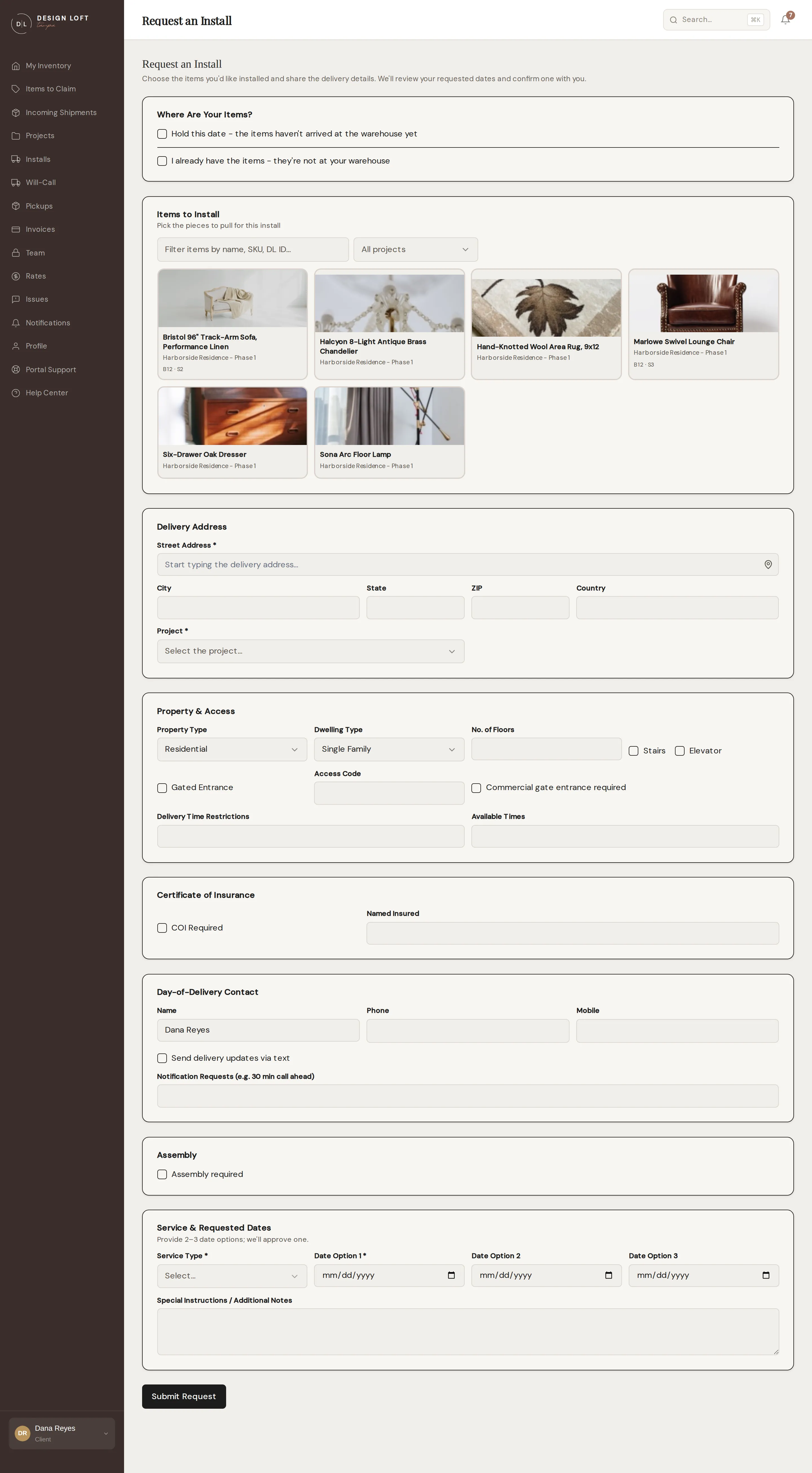
The form, section by section
Section titled “The form, section by section”Where Are Your Items? Two boxes at the top of the form, for the two jobs where there is nothing of yours in our warehouse to pick. Leave both unchecked for a normal install.
- Hold this date - the items haven’t arrived at the warehouse yet reserves the date now, and you confirm the actual pieces once they reach us - see Holding an install date.
- I already have the items - they’re not at your warehouse is for pieces we never received: they are at your place, at the site, or were shipped straight to you, and you would like our crew to install them - see Installing items you already have.
It is one or the other, never both: a hold exists to wait for freight coming to us, so it does not apply to pieces that are already with you. Checking either box takes the item picker off the form, because there is nothing of ours to pull.
Items to Install. A photo grid of everything you have in storage, grouped by project. Select all the items for this trip. Three tools above the grid help you find things quickly:
- Search by an item’s name, its SKU, or the ID printed on its label.
- The project dropdown shows one project’s items at a time.
- Selected appears once you have picked something. Select it to see only the items you have chosen so far; select it again to go back to the full grid.
Each tile shows the item’s best photo, and resting your pointer on a tile flips through all of its photos - useful when the first shot is the box it arrived in. A small counter on the tile shows how many photos there are. (You can also choose which photo leads from the item’s detail page.)
If you store a lot with us, the grid is split into pages - move through them with Previous and Next below the grid. Your picks are kept while you search, filter, and change pages, so you can select freely across all of them.
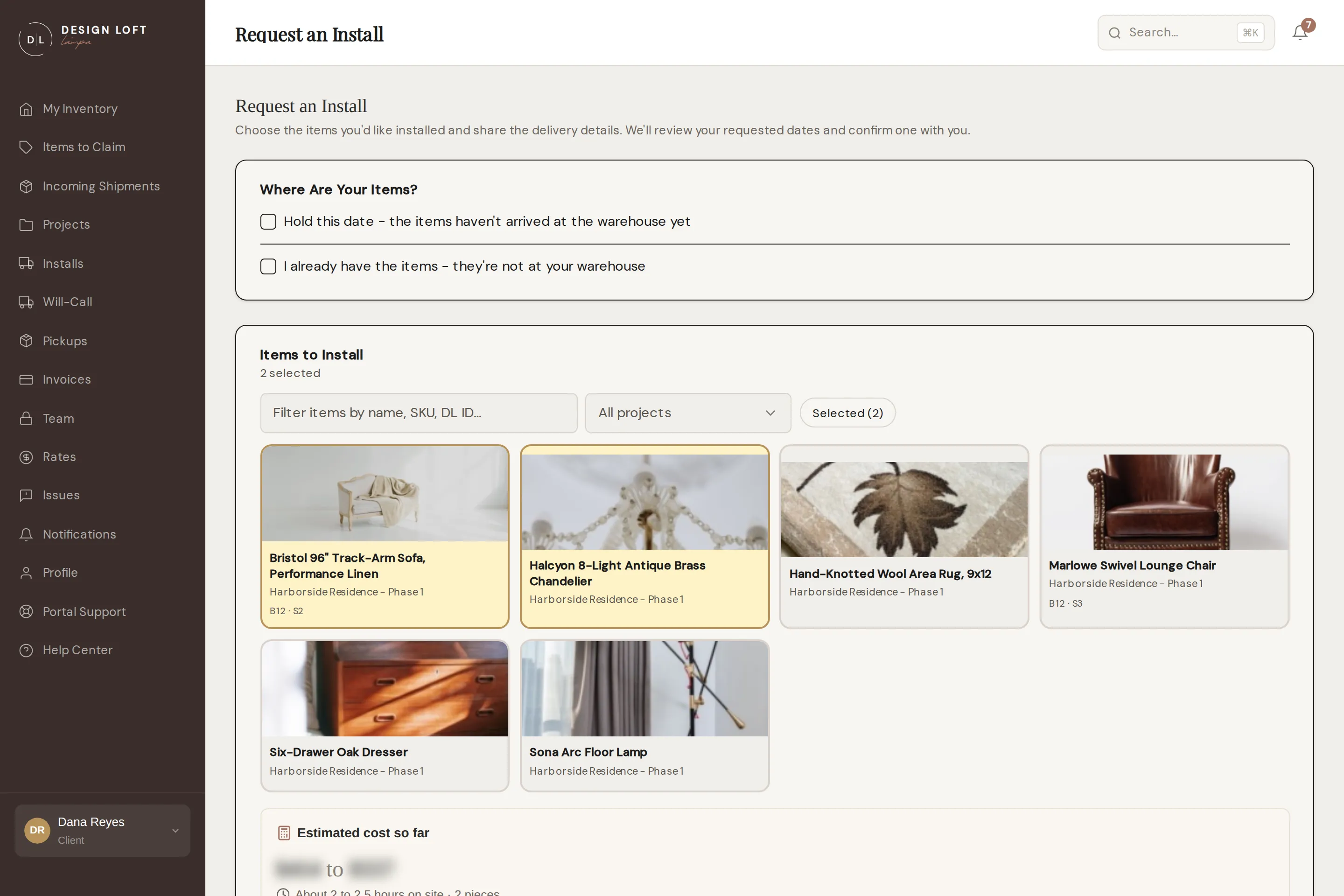
As soon as you have picked something, Estimated cost so far appears under the grid and keeps up as you add and remove pieces, so you can see what a trip is likely to come to while you are still deciding what goes on it - see Your install estimate.
Delivery Address. Where we are going. Address autocomplete fills the details, and addresses you have saved in your profile are ready to reuse. Filling it in also sharpens the estimate, because the drive out and back is part of what an install costs. This is also where you choose the Project the install is for - every request is filed under a project, so the whole trip lands with the right job. If the project you need is not in the list yet, add it first on the Projects page.
Property & Access. What we will find on site: property and dwelling type, floors, stairs or elevator, gated entry and access codes, commercial loading rules, and any time restrictions. The more we know, the smoother (and faster) the install.
If the site is a New Construction / Renovation - a job site rather than a finished home or business - there is one extra step. Active job sites are busy places, so we ask that your design team be on site to inspect the delivered items while our crew is still there, and report any damage before we leave; after that, we cannot take responsibility for damage to those items. The full terms appear on the form when you choose this dwelling type, and you check a box to agree before submitting. A reminder also appears on the request’s page so it is easy to plan for inspection on install day.
Certificate of Insurance. Many buildings require a COI before movers can enter. Check the box if yours does and give us the exact named-insured wording; we will handle the certificate.
Day-of-Delivery Contact. Who our crew should call or text on site, with an option to receive text updates as the truck moves.
Assembly. Whether items need assembly on site, with notes for anything specific.
Service & Requested Dates. Choose the service level and up to three preferred dates, plus any special instructions.
Service levels
Section titled “Service levels”| Service | What it is |
|---|---|
| Blanket Drop-Off | We deliver blanket-wrapped items to the site - fast and economical |
| White Glove | We deliver, unwrap, place, and remove all packaging |
| Final Touch Installation | Full installation day: placement, assembly, styling support |
Dates and closures
Section titled “Dates and closures”Pick up to three date options and we will confirm one. If none of them are open, we will propose the closest date we can do, and you approve it or send it back right from the request page - see Tracking install requests.
Two kinds of day cannot be asked for, and the form says so the moment you choose one: the date box turns red, a line under it tells you to pick another day, and the request will not send until you do.
- Days the warehouse is closed - holidays and the like. Nobody is in the building, so there is nothing to pull and no truck to load. The line reads Warehouse closed - pick another day.
- Days we cannot send a crew. We are open and trading as usual, but our install team is already committed that day and there is nobody to send out. The line reads Not available - pick another day.
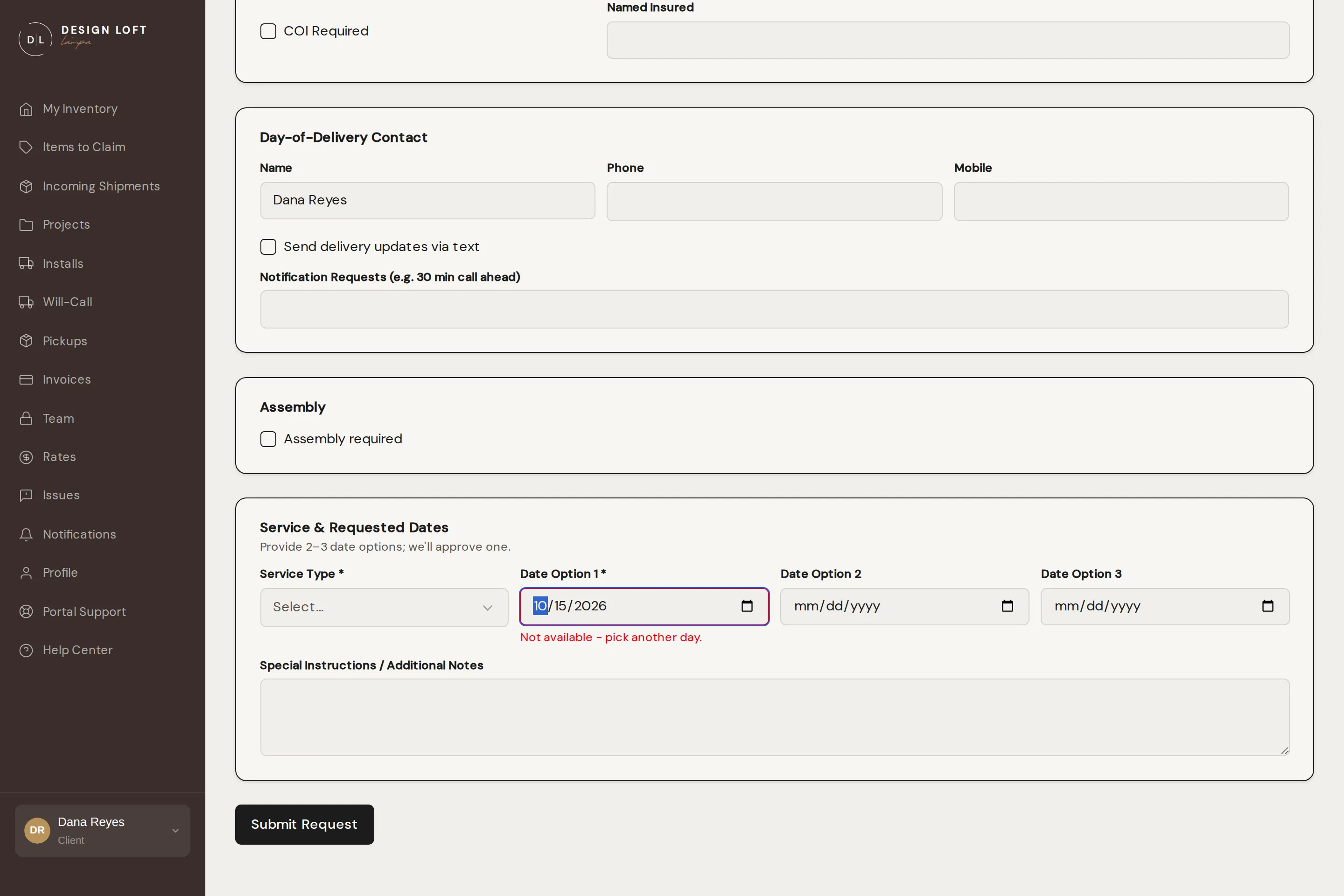
The rule covers every date option on the form, not just the first: one day we cannot work holds the request up until you change it. That is the point of it - you find out while you are still on the form, rather than waiting on an answer that was only ever going to be no. Pick another day, or ask us which day nearest to yours is open.
Now and then a day gets spoken for while you are still filling the form in. Send the request and a message appears at the top of the form naming the date and asking for another one; everything else you have entered stays exactly where it is, so it is a one-field fix.
Holding a date works the same way - see Requesting a hold. Asking us to collect items for you does too, because that is the same crew driving out. A will-call, where your own crew collects from our dock, is only ever stopped by a closed day.
Jobs that take more than a day. A whole-house install is rarely one day’s work. You still propose start dates on this form; when we schedule it, we book the run of days the job actually needs and confirm all of them at once, for example 8/5/2026 - 8/7/2026. Everything after that names both ends: the confirmation you get, the Install Date column in your Installs list, and the request’s own page, which adds how many days on site to expect - see When an install runs more than one day. If the job turns out shorter or longer than planned, we adjust the dates on the request, so its page always shows the run we are working to.
Weekend installs. We run Monday to Friday, so an install worked on a Saturday or Sunday brings a crew in on a day we are closed. That is available, and it carries a flat after-hours callout fee - the same one a weekend pickup pays, because it buys the same thing. It is charged once for the whole job, never per item, and it appears on that install’s own invoice as After-hours / weekend install fee. The fee follows the dates we actually confirm, so weekday dates avoid it and a job moved back to weekdays drops it. A job that runs across several days carries the one fee if any of those days is a Saturday or Sunday - a Friday-to-Saturday install pays it once, not twice.
Installing items you already have
Section titled “Installing items you already have”Sometimes the pieces never came through our warehouse at all - they were delivered to your client’s home, they are sitting at the site, or the vendor shipped them straight to you - and what you want is our crew, not our storage. You can book that here.
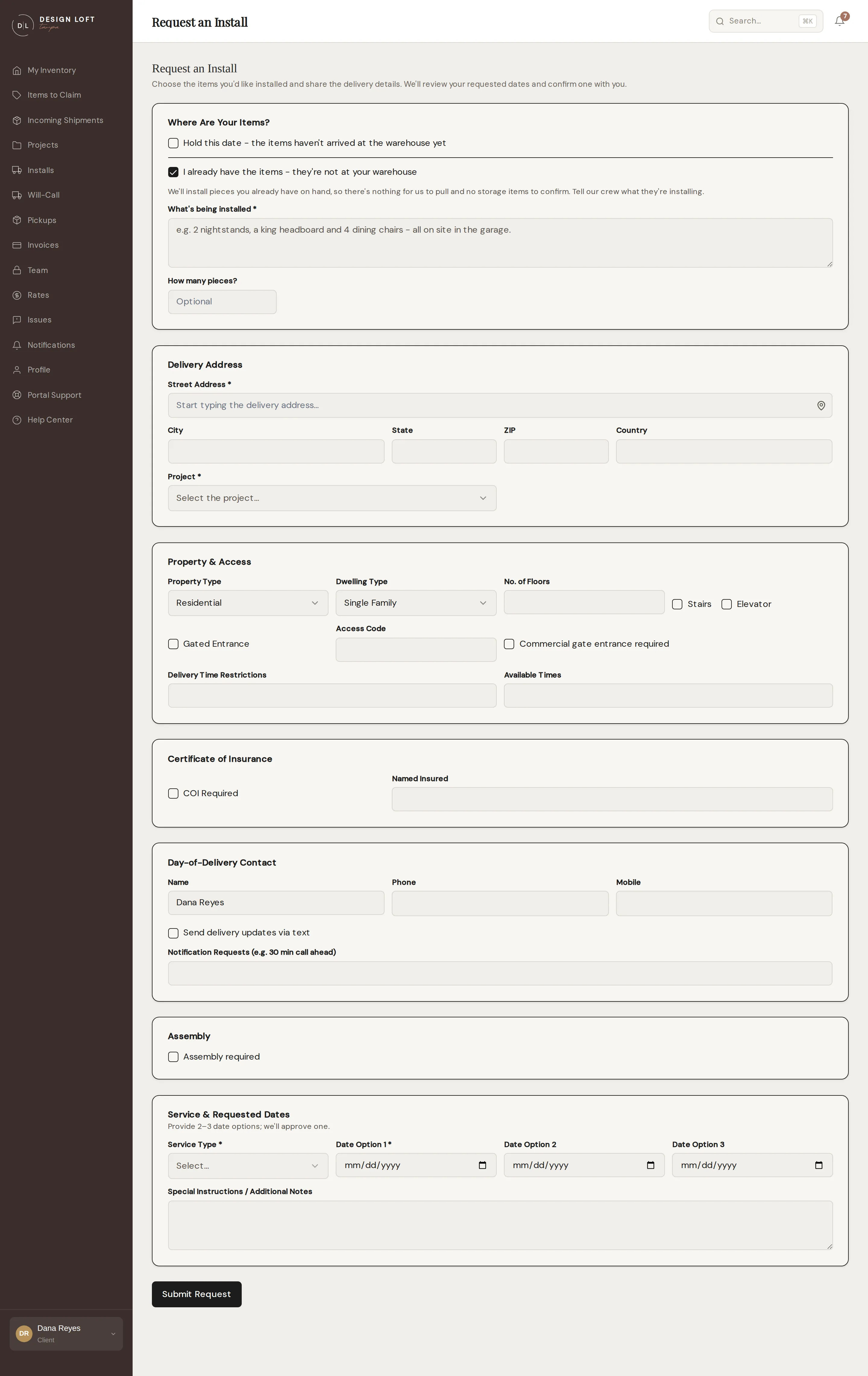
- Open Installs → New Request.
- Under Where Are Your Items?, check I already have the items - they’re not at your warehouse.
- In What’s being installed, describe the pieces. Our crew has no pull list for this job, so your description is what they plan around: “2 nightstands, a king headboard and 4 dining chairs - all on site in the garage” tells them everything they need.
- Fill in How many pieces? if you know the count. It is optional and helps us size the crew.
- Fill in the rest of the form as usual: the address and project, the site details, the service level, and your preferred dates.
- Click Submit Request.
From there it behaves like any other install request: it lands in our scheduling queue as Pending, we confirm a date, and you get the usual updates. Your description stays on the request’s page under You’re installing your own items, so you can check what we were told. To change it, message our team and we will update it.
Three things that work differently on a job like this:
- There is no estimate. An install is estimated from the pieces we are pulling, and there are none, so the request carries no estimated cost - ask us if you want a figure before the day. The job is still billed the usual way afterwards, for the crew and the hours it takes.
- Your storage is untouched. These pieces are not in your inventory, so nothing in it changes and nothing about them appears on your monthly statement.
- You can still mix in pieces we are holding. If some of the job is yours and some is ours, open the request from Installs and use Forgot something? Add items to put your stored pieces on the same trip - see Forgot something? Adding items.
You can also switch to this after the fact if you already asked us to hold a date - see If you already have the items.
After you submit
Section titled “After you submit”Your request appears under Installs with status Pending while we review and schedule it. We will confirm the date through the portal and your notification channels. If we need to suggest a different date, the request shows Date Proposed until you answer - approving it confirms the install on the spot. If you realize you forgot an item, open the request from Installs and add it right there - see Tracking install requests.