

Browsing your inventory
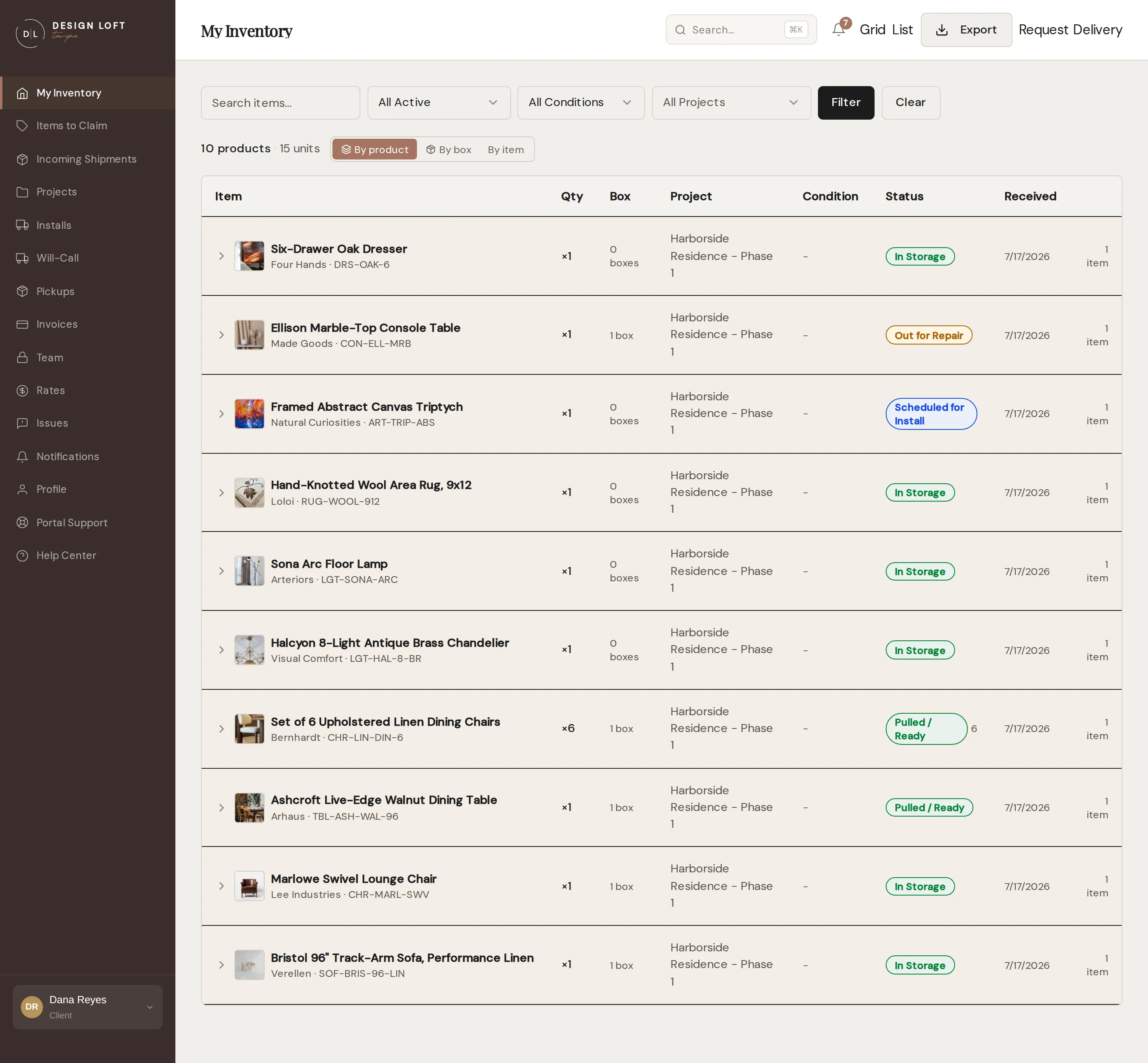
My Inventory lists every item currently in our care for your company: what it is, which project it belongs to, its condition, its status, and when it was received.
Views, search, and filters
Section titled “Views, search, and filters”- List or Grid. Toggle with the List / Grid buttons in the header. List is a dense table; Grid shows item photos first.
- By product, by box, or by item. Within list view, a second toggle chooses how the list is grouped. By product - the default - shows one line per piece you bought, with a total count, no matter how many boxes it is spread across. By box groups pieces into the labeled boxes we store them in, one line per box. By item is a flat list with one row per piece. Grid view always shows individual items.
- Search. Type part of an item’s name, the ID printed on its label, a project name, or the room a piece is headed for.
- Status. The dropdown starts on All Active, which is everything we are still holding for you. Narrow it to In Storage, Scheduled for Install, or Out for Install - or pick Installed to look back at pieces already placed at their projects. To pull up anything else that has left us, search for it by name instead - see Pieces that have left our care.
- Condition. Show only Good, Damaged, or Missing Parts items.
- Project. Pick one of your projects to see just that job’s items - start typing to find it fast.
Set any combination and select Filter; Clear resets everything. By default the list shows what we are still holding for you, so it matches what is actually on our racks - pieces that have left our care are kept out of it, along with the counts that go with them. See Pieces that have left our care for what that covers and how to pull one up.
Pieces set aside for a will-call pickup stay in view the whole time, as Will Call and then Ready for Pickup, because they sit on our racks until your team collects them. So does a piece away at a repair shop, which reads Out for Repair and is coming back to us.
Long lists are split into pages - use Previous / Next at the bottom to move through them.
Pieces that have left our care
Section titled “Pieces that have left our care”Your inventory answers “what is Design Loft holding for me right now”, so once a piece is finished business it drops out of the everyday list and out of the counts that go with it: the Items in Storage figure on your dashboard, the item count on each project, and the contents of a box’s page.
That covers a piece that is:
- Installed at its project,
- Picked Up by your own crew,
- Return to Vendor or Returned, on its way back to the vendor or already collected by them,
- Disposed of or Donated, at your instruction.
Nothing is deleted, and nothing is out of reach. Anything hidden is still there to look up:
- Search for it. Type its name, its model number (SKU), your own spec code for it (like AC-51), or the ID printed on its label into the search box on My Inventory. A search is a lookup rather than a browse, so it brings back everything that matches, whatever its status - pieces that have left us included.
- Or press ⌘K (CtrlK on Windows) from anywhere in the portal and type the same thing.
- Or set the Status filter to Installed, which brings back everything already placed at a project.
The piece’s own page is unchanged and still holds the whole record: its photos, its condition, the box it came in, and every issue ever opened about it. Links and bookmarks to it keep working.
A box’s page tells you when this has happened to its contents: if pieces from that box have been closed out, a line under Contents says how many and points you at the search - see Seeing what shipped in the same box.
A piece can come back. Leaving our care is not always the end of the story. If a piece your crew collected turns out to be defective or damaged and you bring it back to us, our team takes it in at the dock and it rejoins your inventory the same day: In Storage and back in the everyday list if it is going on the racks, or Return to Vendor while it waits for the vendor’s freight company. Its box counts it again, and so does its project. See If a piece has to come back.
Browsing by product
Section titled “Browsing by product”Order eight of the same dining chair and they may reach us in three boxes over two weeks. By product puts all eight on one line so you can answer “what did I buy and how many do I have” without counting rows.
Each product line shows the piece’s photo, its name, the vendor and model number (SKU) beneath it, the total count - for example ×8 - and how many boxes those pieces are spread across. Alongside are the project, the status of the pieces (with a count next to each when they are not all in the same place, such as In Storage 6 and Will Call 2), and the most recent date any of them arrived.
The count on a product line is what we still hold, so it drops as pieces go out to the site. Four of eight chairs installed leaves the line reading ×4; searching for the chair by name brings all eight back, installed ones included - see Pieces that have left our care.
- Select a product line to open it - every piece counted in that line appears beneath it, each with its own box, condition, and status.
- Select the product line again to close it.
- Select View on a piece for its full detail page, or select its box ID to see everything that shipped in the same box.
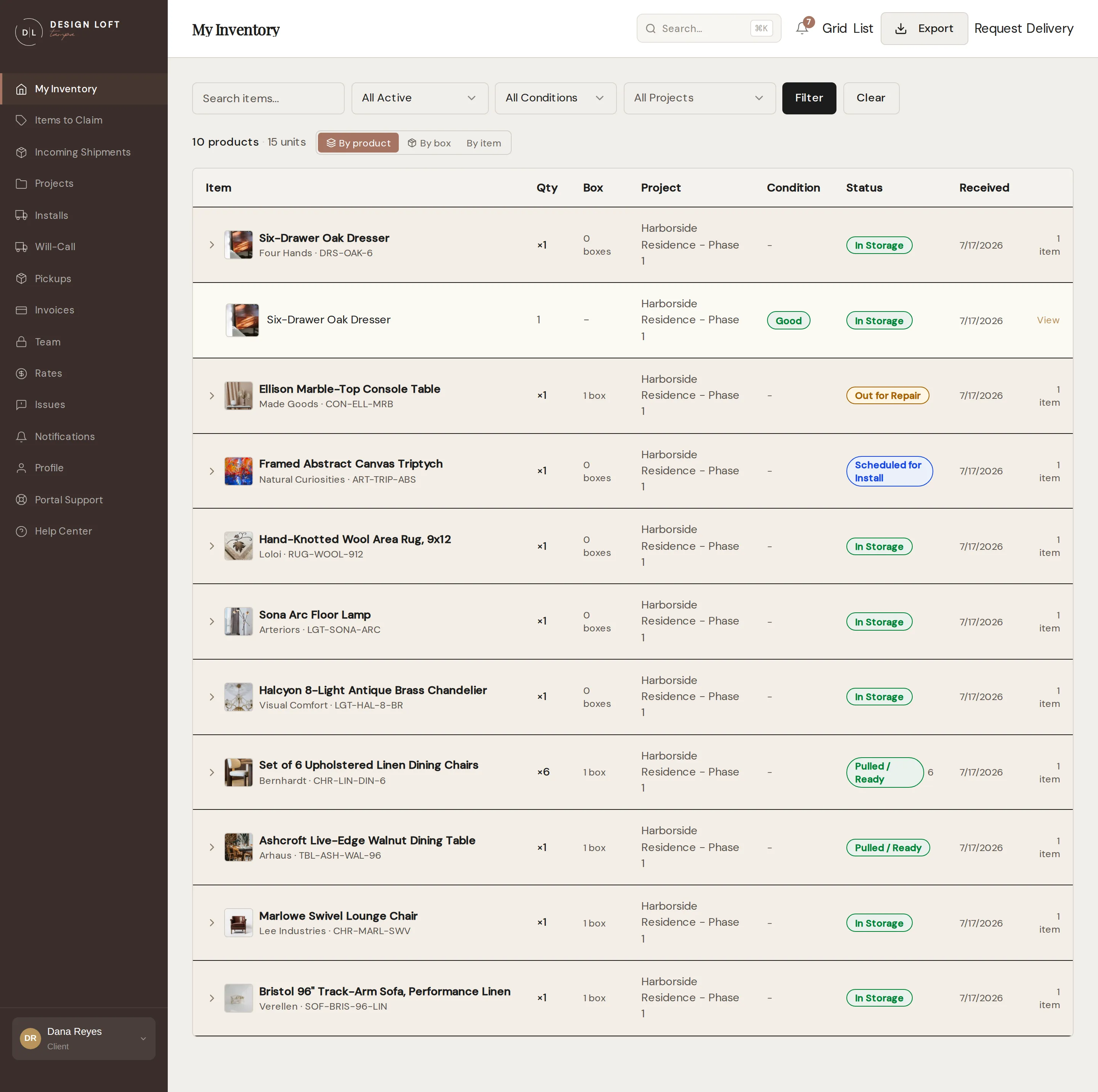
The total at the top of the list reads 24 products · 96 units: how many different pieces you own, and how many individual units of them we are holding.
How we decide two pieces are the same product. We match on the vendor and the model number (SKU) on the piece, within the same project - so the same chair ordered for two different projects stays on two lines, which is usually what you want when you are pulling for one job. A piece with no model number always keeps its own line, because there is nothing to match it against. If a vendor ships the same piece under two different model numbers and you would like them counted as one, tell us and our team groups them by hand.
Grouping is only a way of reading the list. It never changes your boxes, their labels, or what is packed where.
Browsing by box
Section titled “Browsing by box”Everything we store for you lives in a labeled box. Switch the list toggle to By box and each line becomes one box: a box icon, the label ID printed on it, the box’s size and weight, and a count of what is inside - for example 2 items (or 2 items · 7 units when one of those lines is itself a set, like a set of six chairs). A box that holds a single piece shows that piece’s condition and status right on its line.
In this view the total at the top of the list reads 45 boxes · 600 items, so you can see how many boxes we are holding for you as well as how many individual pieces.
- Select a box line to open it - the pieces packed in that box appear beneath it, each with its own condition and status.
- Select the box line again to close it.
- Select View box on the box line to open the box’s own page, with its photos and every item inside. See Seeing what shipped in the same box.
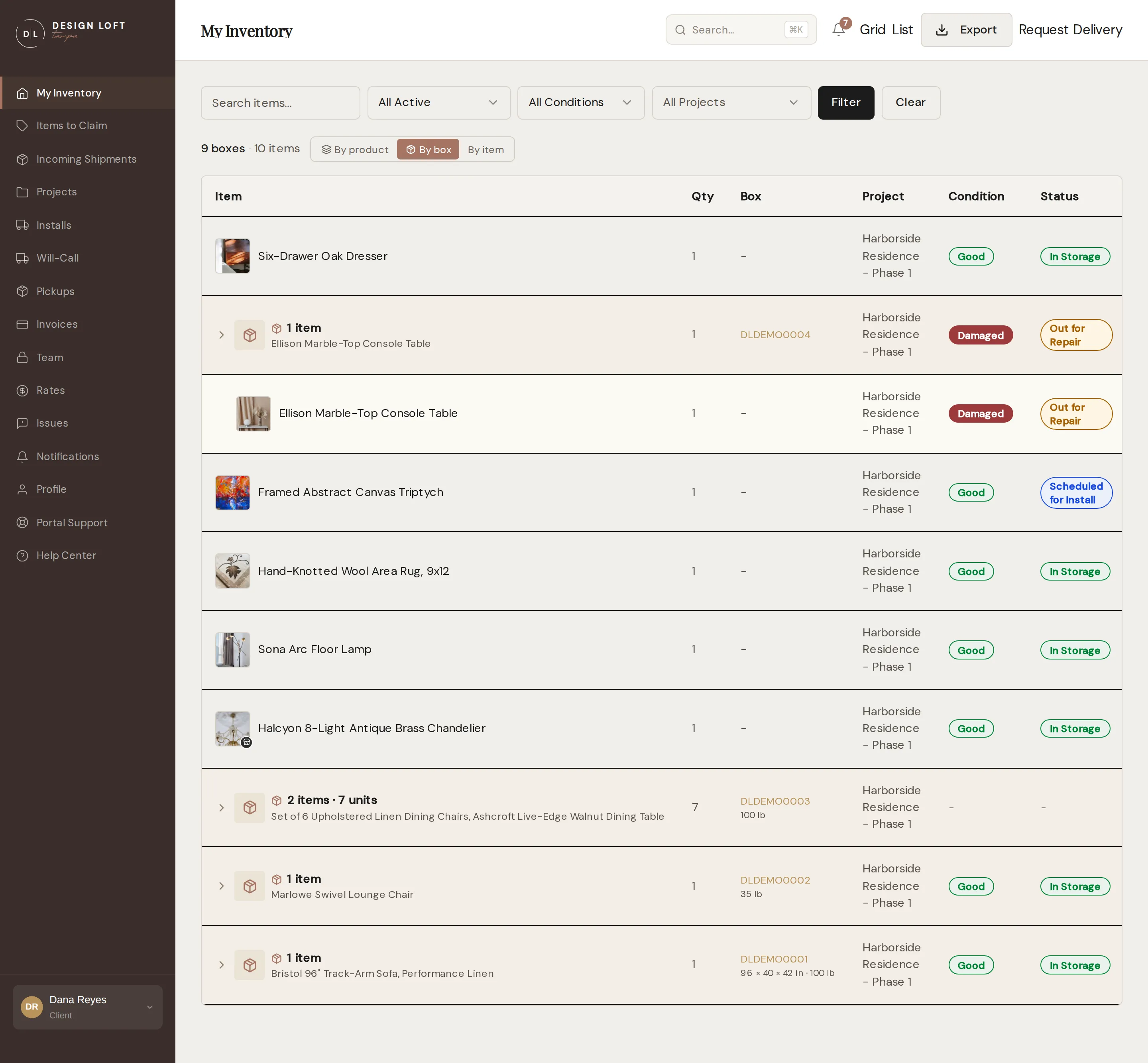
Switch the toggle back to By product at any time to return to the counted list, or to By item for a flat list with one row per piece.
Browsing by item
Section titled “Browsing by item”By item is the plainest of the three: no grouping at all, one row per piece, each with its own condition, status, project, and the box it is packed in. Reach for it when you want to look at pieces rather than counts - checking the condition of everything on a job, say, or finding which box a particular piece ended up in.
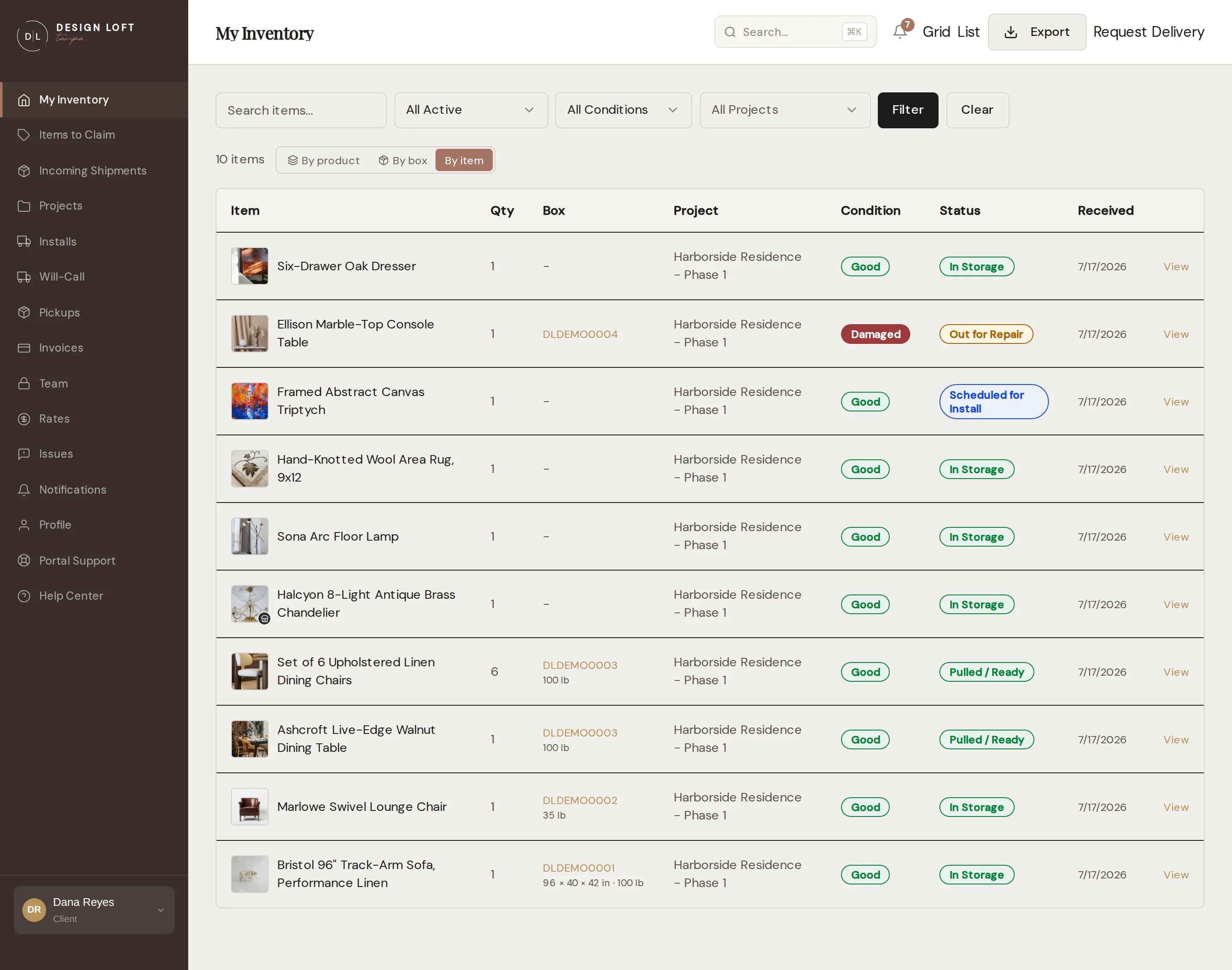
Every row carries a View link straight to that piece’s own page, with no group to open first, so it is the quickest way in when you already know what you are looking for. Where we have measured the box a piece is packed in, its size and weight sit under the box ID - see How big a box is, and how heavy.
How big a box is, and how heavy
Section titled “How big a box is, and how heavy”We measure and weigh every box as we check it in, so you can tell what a piece will take to move before you book a truck, size up an elevator, or plan a stair carry.
Wherever a box’s label ID appears in the list - in the By box view and in the box column of the By item view - its size and weight sit just underneath, reading something like 24 × 18 × 12 in · 42 lb.
For the full figures, open the box’s page: its dimensions, its weight, and its cubic feet, which is how much storage space the box takes up and what the storage line on your invoice is based on. An individual piece’s page shows the same size and weight for the box it came in, under Box size - see Item details.
Boxes we were never able to measure show nothing rather than a row of dashes. That is mostly older items that came across from our previous system. Once in a while a recent box shows its size but no weight: a crate or a loaded pallet can be too heavy or too awkward to get on a scale the day the truck arrives, so we take the size then and add the weight once we can. If you need that weight sooner, ask us and we will get it for you.
Downloading or printing your inventory
Section titled “Downloading or printing your inventory”Sometimes the list needs to leave the portal: a spreadsheet for your own records, a printed copy for a site walkthrough, a checklist for the crew. Export, in the header next to the List / Grid buttons, takes what the list is showing and turns it into a file.
- Search or filter first if you want a slice rather than the whole list - one project, one status, one search. The export always contains exactly what the screen shows. Left alone, that is everything currently in our care.
- Select Export.
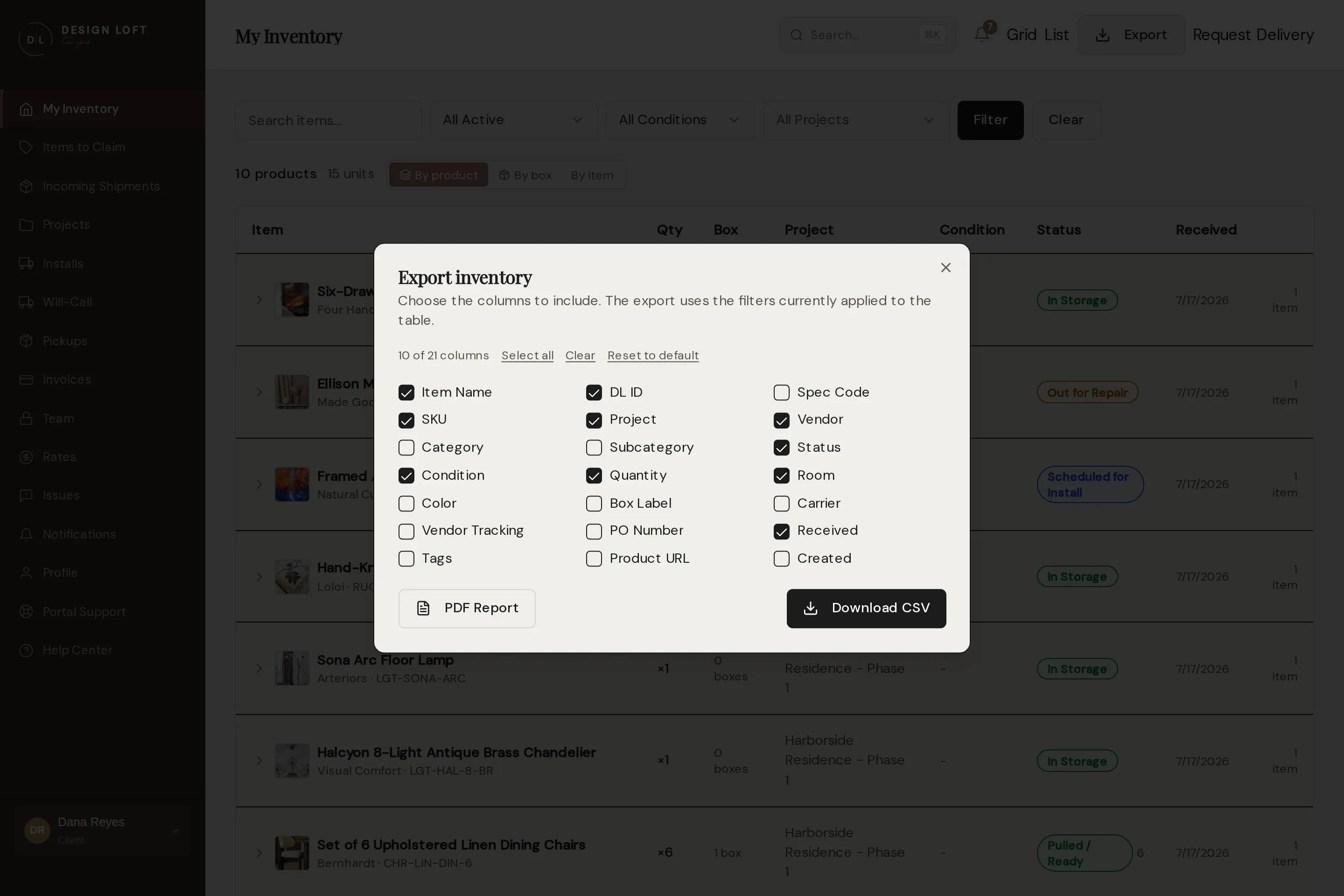
- Tick the details you want as columns: the item’s name, the ID on its label, its project, vendor, status, condition, quantity, the room it is headed for, the day it arrived, and more. The usual set is already ticked when the dialog opens; Select all, Clear, and Reset to default save clicking.
- Take it out either way:
- Download CSV saves a spreadsheet file that opens in Excel, Numbers, or Google Sheets.
- PDF Report opens a print-ready report on our letterhead in a new tab. Select Print / Save as PDF there, then choose Save as PDF in the print window to keep a file, or pick your printer for a paper copy.
The report starts with a quick summary - how many items, how many units in total, and how many projects and boxes they span - and lists the filters it was made with, so a page in a binder still says what it covers. Below that comes the table itself, one row per piece, in the columns you ticked.
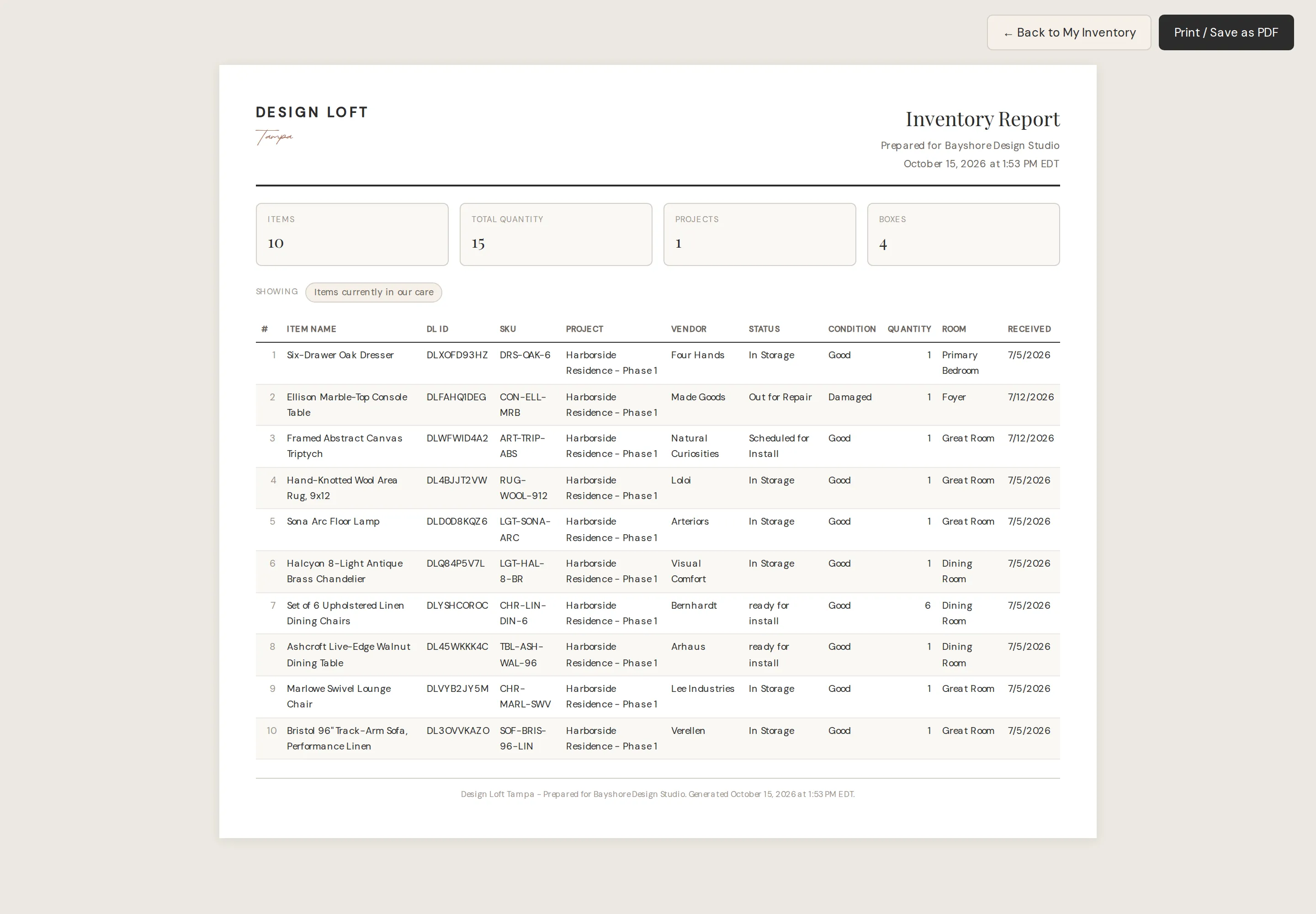
If your list is very long, the report tells you at the top when it could not fit everything - narrow the filters and run it again, one project or one status at a time.
What the statuses mean
Section titled “What the statuses mean”| Status | Meaning | In your list by default |
|---|---|---|
| Expected | We know it is coming but it has not arrived yet | Yes |
| Received | Arrived at the warehouse, being checked in | Yes |
| In Storage | Inspected, photographed, and on the racks | Yes |
| Scheduled for Install | On an upcoming install | Yes |
| Pulled / Ready | Staged and ready to go out | Yes |
| Out for Install | On the truck for delivery and placement | Yes |
| Installed | Delivered and placed at your project | No |
| Will Call | Set aside for a will-call you arranged | Yes |
| Ready for Pickup | Pulled and waiting at our dock for your crew | Yes |
| Picked Up | Signed for and collected by you or your crew | No |
| Out for Repair | With a repair vendor | Yes |
| Return to Vendor | Going back to its vendor; pickup is being arranged | No |
| Returned | Picked up by the vendor’s freight company | No |
| Disposed of | Thrown out at your instruction | No |
| Donated | Given away at your instruction | No |
The last column is about the everyday list only. A No piece is still yours to look up any time by searching for it - see Pieces that have left our care. A status is not a dead end either: a piece that reads Picked Up or Installed and then comes back to us moves to Return to Vendor or In Storage the day it arrives - see If a piece has to come back.
If an item is going back to its vendor, its detail page tracks the pickup and, once the item has been collected, holds the signed release paperwork for you to download - see If an item goes back to the vendor. Search for the piece by name to open that page once it has left the everyday list.
A piece your own crew collected has the same kind of paperwork behind it. Whoever took it signed for it at our dock, and that signed release lives on the pickup, under Will-Call → Details - see Your copy of the release.
When a picture came from the vendor
Section titled “When a picture came from the vendor”A few items show the vendor’s own catalog picture rather than a photo of your actual piece, usually because we do not have one of the real piece yet. Those are always marked, so nobody judges a fabric or a finish off a marketing shot:
- In Grid view the picture carries a Stock photo label.
- In the list, a piece’s thumbnail gets a small shop symbol in its corner - rest your pointer on it for the explanation.
Photos we took always come first, so a marked picture means we have nothing of the real piece to show you instead. See Pictures that came from the vendor.
Condition and open issues
Section titled “Condition and open issues”Each item carries a condition: Good, Damaged, or Missing Parts. If an item has an open issue, its row shows an Open issue link (or Action required when we are waiting on you) that jumps straight into the conversation. See Reporting an issue.
From here
Section titled “From here”- Select View on any row for the full picture: photos, project, and actions. See Item details.
- Ready to get items out to a site? Request Delivery starts an install request.